Trade Request Flood
General Information
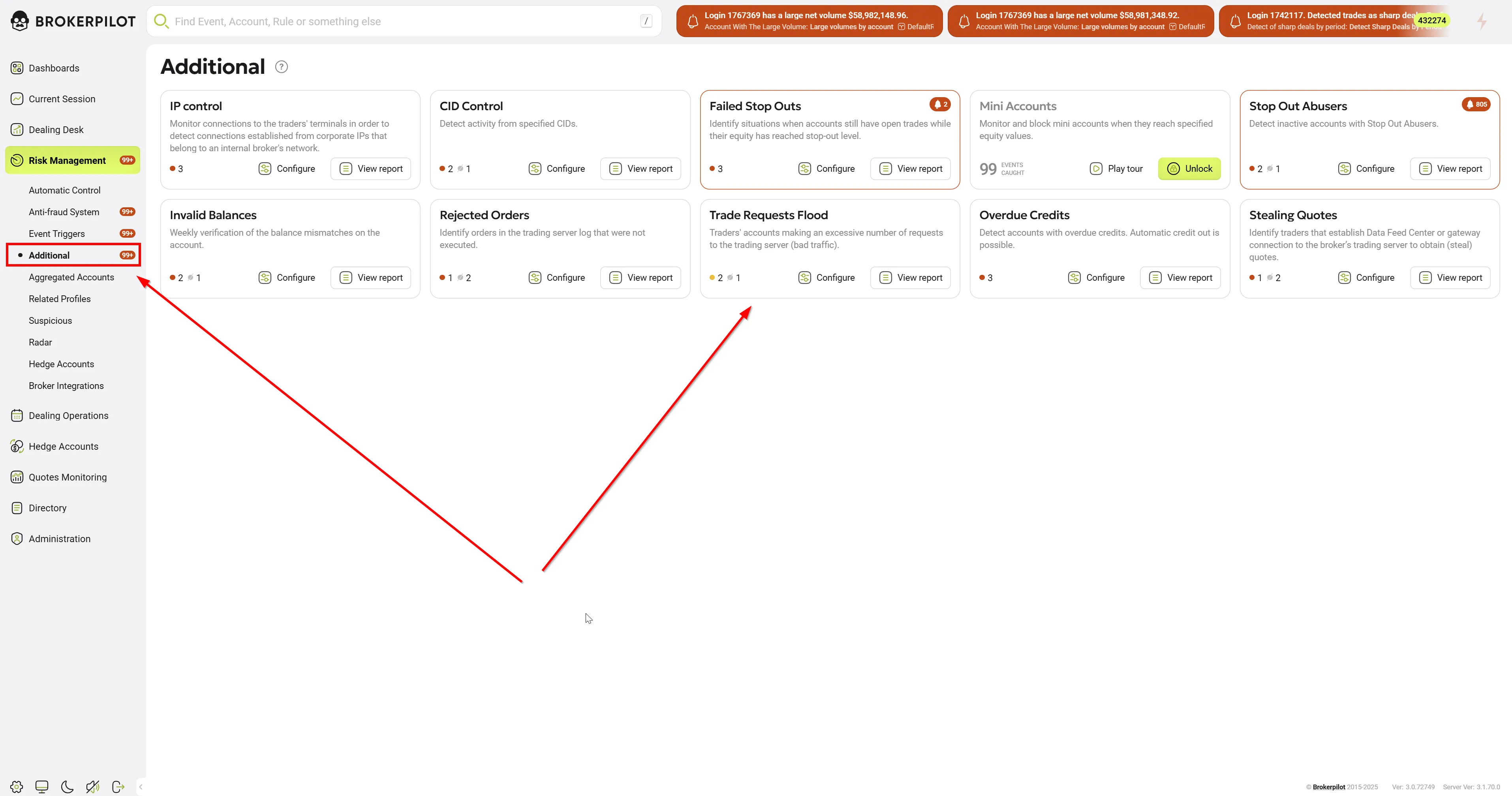
The Trade Request Flood trigger is designed to automatically detect and prevent flood attacks from clients who send an excessive number of trading requests within a short period of time. This helps brokers protect against:
- DDoS attacks on the trading server – massive request sending to create heavy load
- API abuse – automated trading robots with incorrect configurations
- Fraud – attempts to exploit request processing delays for arbitrage
- Service degradation – slowed request processing for all clients
Key Features:
-
- Real-time flood detection – Request frequency analysis using an O(1) Sliding Window algorithm.
- Two-level protection:
- Time Window – number of requests per N seconds.
- Session Counter – total number of requests since the start of the trading session.
- Automatic account blocking – Optional trading block by setting the
Read-Onlyflag, with automatic unblocking based on a timer. - Flexible rule filtering:
- By account groups (Include/Exclude)
- By specific accounts (Include/Exclude)
- By request source (Client Terminal, Expert Advisor, Mobile, Web, Signal, Gateway)
- Tracking of all types of trading operations – Opening/closing positions, modification, deleting pending orders, manager operations.
-
- In-memory Issues queue – Up to 100,000 events with a FIFO policy upon overflow.
Flood Detection Algorithm
The trigger uses a two-level detection system:
-
Sliding Window Counter
- Counts the number of requests over the last number of seconds.
- Operation complexity (add, count).
- Automatic cleanup of outdated data.
- Separate window for each rule - each rule has its own counter with a specific window size.
- Example: "20 requests in the last 5 seconds"
-
Session Counter
- Counts the total number of requests since the start of the trading session (00:00 server time).
- Automatically resets at the beginning of a new day.
- Example: "10,000 requests since the start of the session"
A flood is detected when any of the conditions are met:
Important: A flood is triggered when EITHER of the two thresholds is exceeded (sliding window OR session counter), which provides more effective protection.
Platforms:
✅ MT4: full support (Hedging mode)
📌 To enable this feature on the MT4 platform, a plugin installation is required. Please contact our Support Team to obtain it.
✅ MT5
MT4 Plugin Deployment and Configuration on the Trading Server
1. Deployment for MT4
- Copy the
BrokerpilotTradeRequestsFloodMt4.dllfile to the MT4 trading server into thePluginsfolder. - Restart the MT4 server/service (or perform the plugin reload procedure).
2. Enabling and Configuring in the Administrator Console
- Open the MT4 administrator console → Plugins section.
- Add/enable the Trade Request Flood Protection plugin.
- Configure the plugin parameters in the administrator console UI (parameter list provided below).
- Apply the changes.
MT4 Plugin Parameters (Global Settings)
| Parameter Name in UI | Type | Default | Description |
|---|---|---|---|
| Send Issues | bool | true | Enables sending Issues (flood detection events) to the Brokerpilot system for display in the UI (account card). |
| Use debug logs | bool | false | Enables detailed logging of all plugin operations for diagnostics and debugging. ⚠️ Warning: creates a large volume of logs, use only for troubleshooting. |
| Check Account (0 = log all accounts) | int | 0 | Filter for logging: 0 = log all accounts, N = log only the account with Login=N. Useful for debugging a specific account. |
⚠️ IMPORTANT WARNING:
We do not guarantee the correct operation of the plugin in environments where third-party plugins that modify trading requests or block accounts are installed on the server. Such plugins may conflict with the Trade Request Flood Protection logic.
Editing Rule Settings
The trigger stores its own copy of the active rule configuration and applies it to trading requests in real time.
Rule Priority and Overlaps
Rules can overlap and conflict by:
- Account groups - one group can be included in multiple rules.
- Accounts - one account can fall under multiple rules.
- Request sources - the same request types can be in different rules.
In case of overlap:
- ✅ No error will occur - the plugin will continue working.
- ⚠️ A warning will be logged.
- 🔝 Rule priority: the first matched rule.
Important: If a request falls under multiple rules simultaneously, the first matched rule is applied.
Practical Application:
You can configure a general rule for all accounts with basic protection, and then add stricter rules for specific groups or accounts.
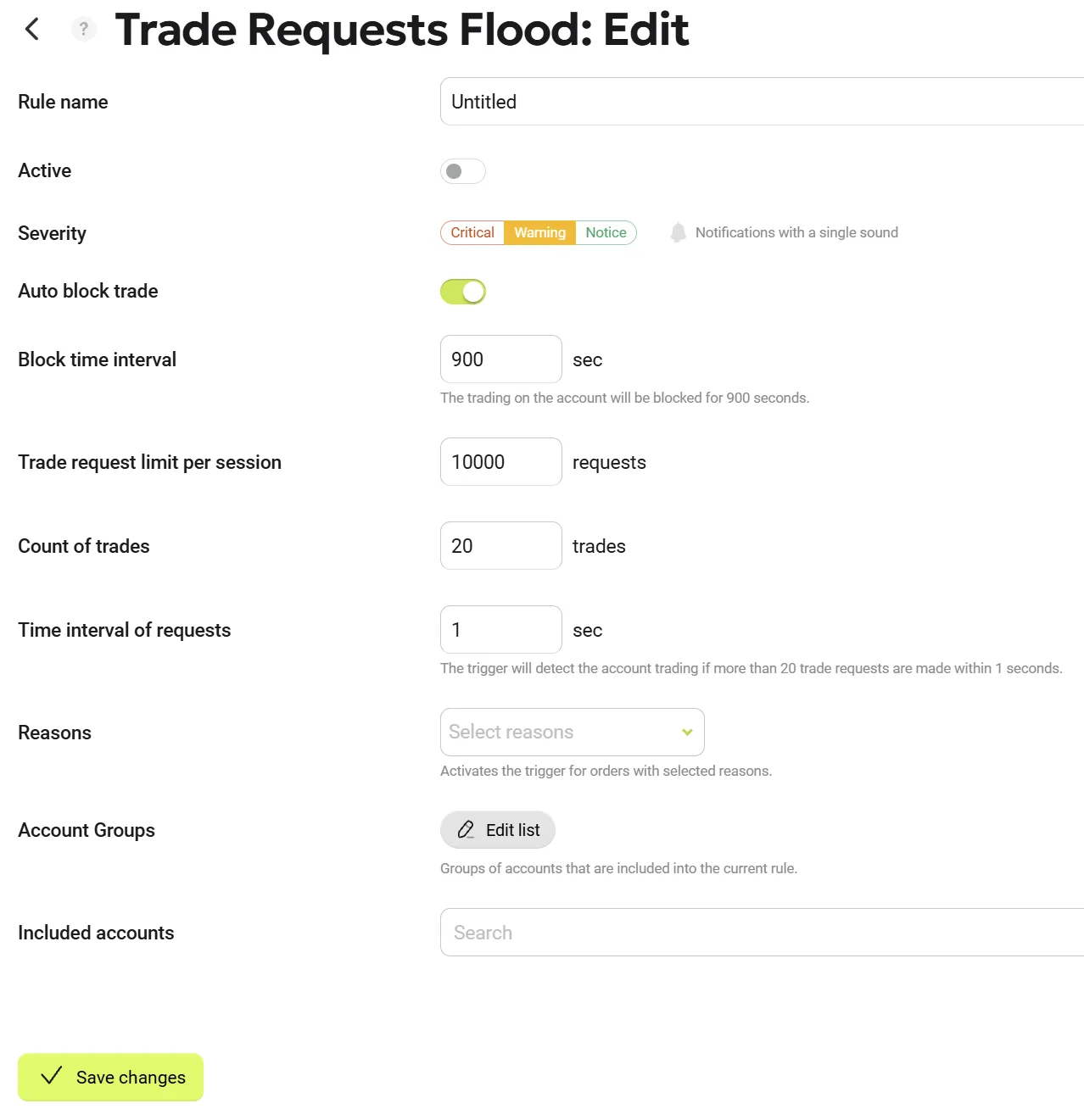
Main Rule Parameters
| Parameter Name | Description |
|---|---|
| Rule Name | Assign a specific name to the rule. |
| Auto Block Trade | Enables automatic account blocking if excessive requests are detected. |
| Block Time Interval (seconds) | Defines the duration for which trading is blocked after a violation. |
| Trade request limit per session | The minimum number of trade requests per trading session required to generate a notification. |
| Count of Trades | The threshold number of trading requests to trigger the rule. Example: 20 means "20 requests". |
| Time Interval of Requests (seconds) | The time window within which trade requests are counted. Example: 5 means "in the last 5 seconds". |
| Reasons | Filter by the source of trading requests. If not specified, applies to all sources. Available sources: Client Terminal, Expert Advisor, Mobile App, Web Terminal, Signal Service, Gateway, Manager/Dealer. |
| Account Groups | Specify account groups for monitoring. |
| Included accounts | Specify individual accounts for monitoring. |
Rule Configuration Example
Scenario: Flood protection for standard accounts
Rule Name: "Standard Flood Protection"
Active: Yes
Auto Block Trade: Yes
Block Time Interval: 900         # 15-minute block
Trade request limit per session: 10000  # 10k requests per session
Count of Trades: 20           # 20 requests
Time Interval of Requests: 5  # in 5 seconds = 4 req/sec
Accounts Groups: All       # all groups
Accounts: All              # all accounts
Reasons: (empty)           # all request sources
Result:
- If a client sends 20+ requests in 5 seconds OR has 10,000+ requests per session
- An Notification is created in Brokerpilot
- The account is automatically blocked (Read-Only)
- After 15 minutes (±5 sec) the block is automatically removed
Notification Message Example
Upon automatic block:
Login 12345. 25 requests in 5 seconds. This account is temporarily blocked for 900 seconds!
Without block:
Login 12345. 25 requests in 5 seconds, need to verify!
Common Problems and Solutions
Problem: The trigger does not detect floods
Solutions:
- ✅ Check that the rule is active (Active = Yes)
- ✅ Check the filters (Accounts Groups, Accounts, Reasons)
- ✅ Check the thresholds (CountOrders, PerSeconds, TotalSessionRequests)
- ✅ Ensure that at least one of the conditions is met (window OR session)
- ✅ Enable debug logs for detailed diagnostics
Problem: Account is not blocked during a flood (MT4)
Solutions:
- ✅ Check that
Auto Block Trade = Yesin the rule - ✅ Check the logs for blocking errors
- ✅ Ensure the plugin has rights to modify accounts
- ✅ Verify that the MT4 API returns RET_OK
Problem: Account is not automatically unblocked
Solutions:
- ✅ Check that the
Block Timeoutis set correctly - ✅ Check the logs for the
ProcessScheduledUnblocks()call (every 5 seconds) - ✅ Verify that the MT4 server has not been restarted (this clears scheduled unblocks)
- ℹ️ Note: Unblocking occurs with a precision of up to 5 seconds (scheduler interval)
Best Practices
Recommended Rule Settings
For Retail Accounts:
Auto Block Trade: Yes
Block Time Interval: 600         # 15-minute block
Trade request limit per session: 5000  # 5k requests per session
Count of Trades: 20           # 20 requests
Time Interval of Requests: 5  # in 5 seconds = 4 req/sec
For VIP Accounts:
Auto Block Trade: Yes
Block Time Interval: 300         # 5-minute block
Trade request limit per session: 5000  # 5k requests per session
Count of Trades: 50           # 50 requests
Time Interval of Requests: 10  # in 10 seconds = 5 req/sec
For Accounts with Trading Robots:
Auto Block Trade: No
Block Time Interval: 600         # 10-minute block
Trade request limit per session: 50000  # 5k requests per session
Count of Trades: 100           # 100 requests
Time Interval of Requests: 30  # in 30 seconds = 3.3 req/sec
Defense Strategies
- Basic Protection - A single rule for all accounts with soft limits
- Multi-level Protection - Different rules for different account groups
- Adaptive Protection - Strict limits during peak hours, softer limits during quiet times
- Monitoring Mode - Auto Block = No to gather statistics before enabling blocks
Efficiency Monitoring
Metrics to track:
- Number of detected flood attacks per day
- Percentage of blocked accounts
- Average time to unblock
- False positives (legitimate high-frequency traders)
- Server load (requests/second)
Alert Thresholds:
- > 10 flood events per hour → check rules
- > 50 blocked accounts per day → possible massive attack
Known Issues
Problem: After restarting the MT4 server, accounts remain blocked
Workaround: Scheduled unblocks are stored in memory and are lost upon restart. It is necessary to manually unblock accounts or wait for the next flood detection (they will unblock over time).
Status: Will be fixed in the next versions (persistent storage for scheduled unblocks)
Problem: Legitimate high-frequency traders might be blocked
Workaround:
- Add their accounts to Excluded for the rule
- Create a separate rule with softer limits for their group
- Use Auto Block = No for monitoring before blocking
Status: This is expected behavior. It is recommended to adjust the rules to fit your business model.
MT4 Plugin Update
Update Procedure
- Stop the MT4 trading server
- Create a backup:
Mt4_BPTradeRequestsFlood.rules.json- Plugin logs
- Replace the DLL file with the new version
- Start the MT4 trading server
- Check the logs for successful initialization
- Check the configuration in the Brokerpilot UI
- Test the operation on a test account
Permissions
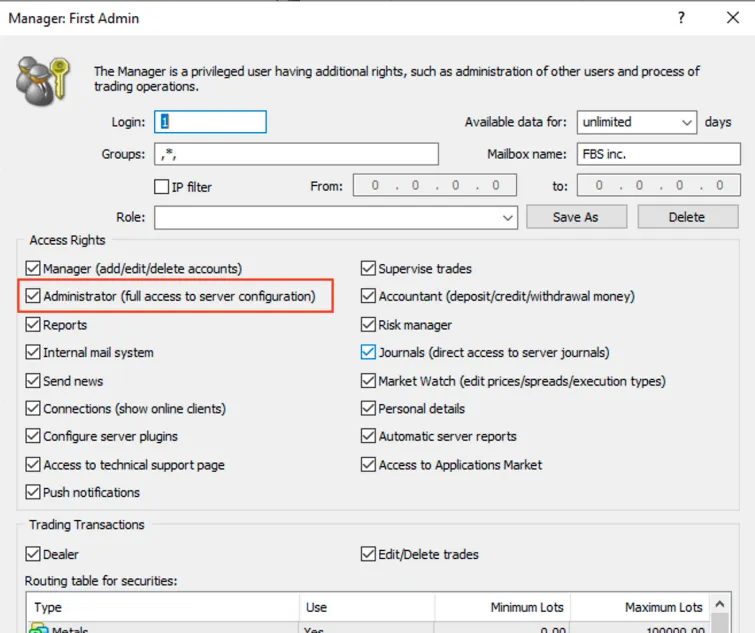
For the Auto Block Trade feature to work, the following permissions are required:
MT4
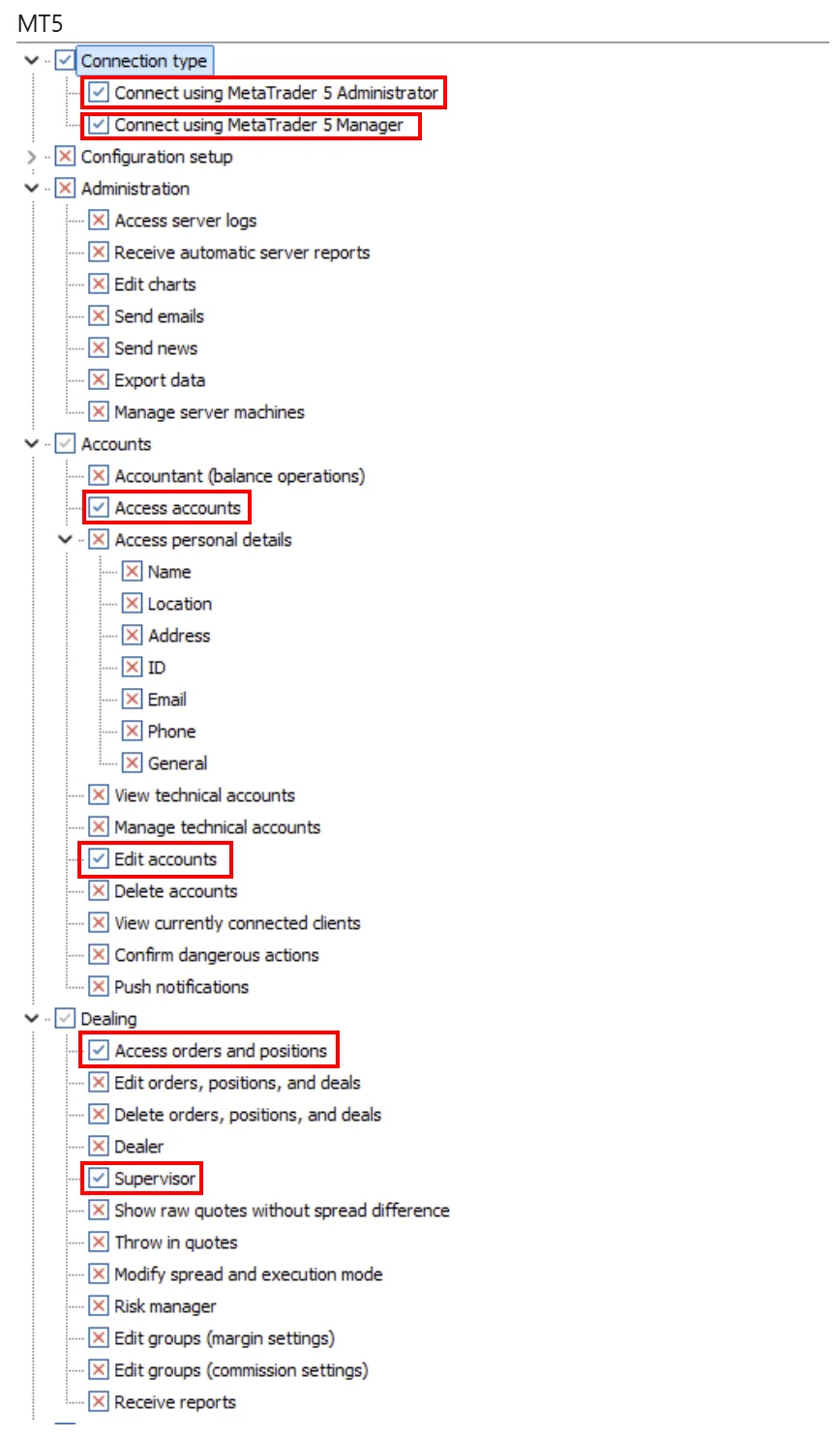
MT5