Failed Stop Outs Documentation
Overview
The Failed Stop Outs trigger is a risk management tool designed to monitor trading activity and identify anomalies where accounts still have open trades despite their equity reaching or falling below the broker's defined stop-out level. This allows dealing desk and risk management teams to quickly detect and investigate situations where automatic stop-outs failed to execute properly.
To access this module, navigate to Risk Management > Additional in the main sidebar and locate the Failed Stop Outs card.
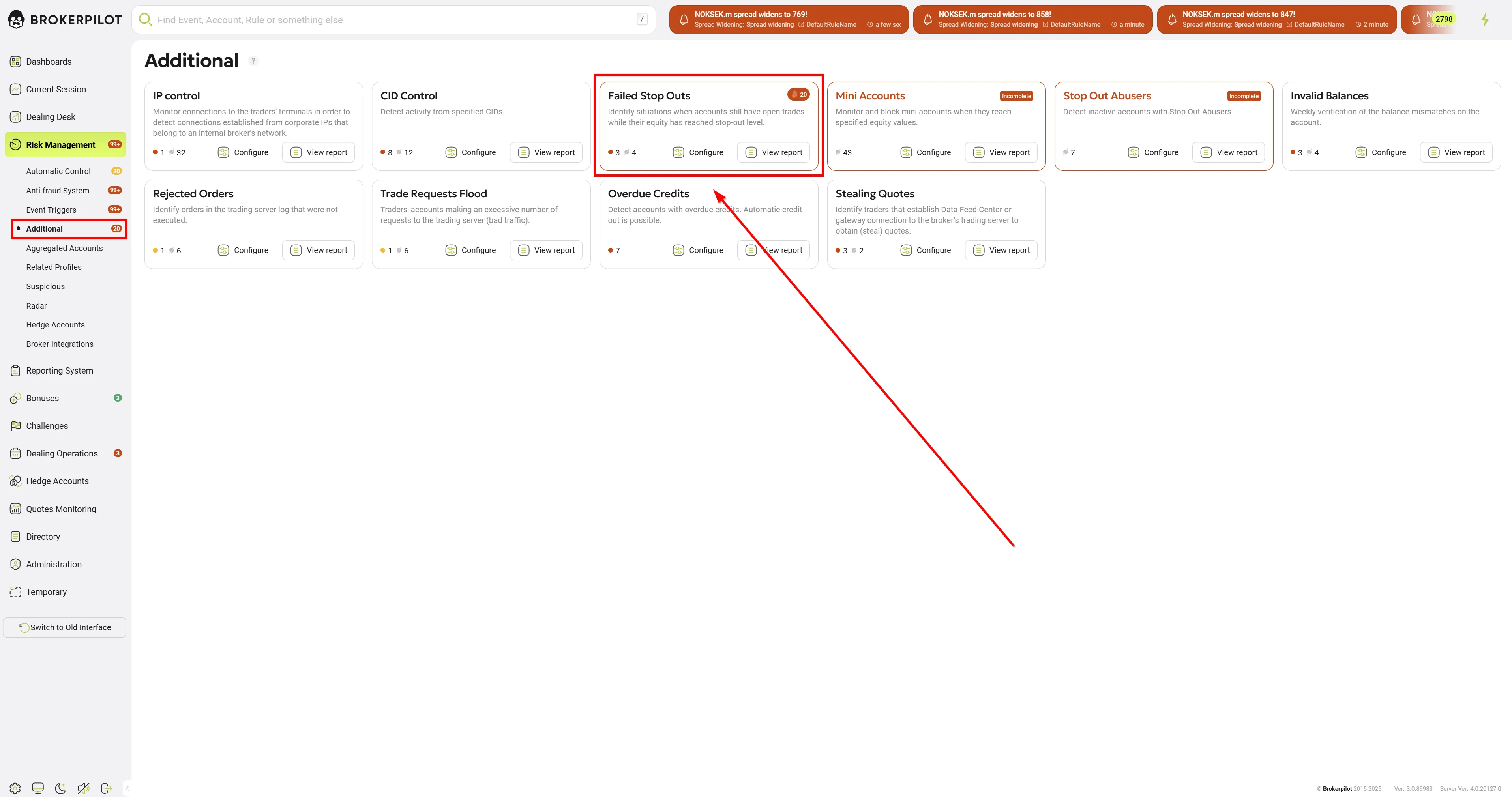
From the main card, you can view the number of active triggers and quickly access the Configure or View report sections.
Configuring Rules
Clicking the Configure button on the Failed Stop Outs card opens the rule management dashboard.
Menu Navigation
-
Server/Platform Filters: At the top of the screen, you can filter your existing rules by trading platforms and servers (e.g., All, MT4, MT5, cTrader).
-
Rule Management: Each existing rule is displayed in a list showing its State (Active/Inactive) and Details (Name and assigned Server). You can Edit or Delete (trash bin icon) any existing rule directly from this list.
-
Top Toolbar Options:
- Export/Import rules: Download your current configurations or upload existing ones, which is useful for backing up setups or migrating them between environments.
- Add rule: Click this button to create a new monitoring configuration.
Adding or Editing a Rule
When you choose to add a new rule or edit an existing one, you will need to define the following parameters:
General Settings
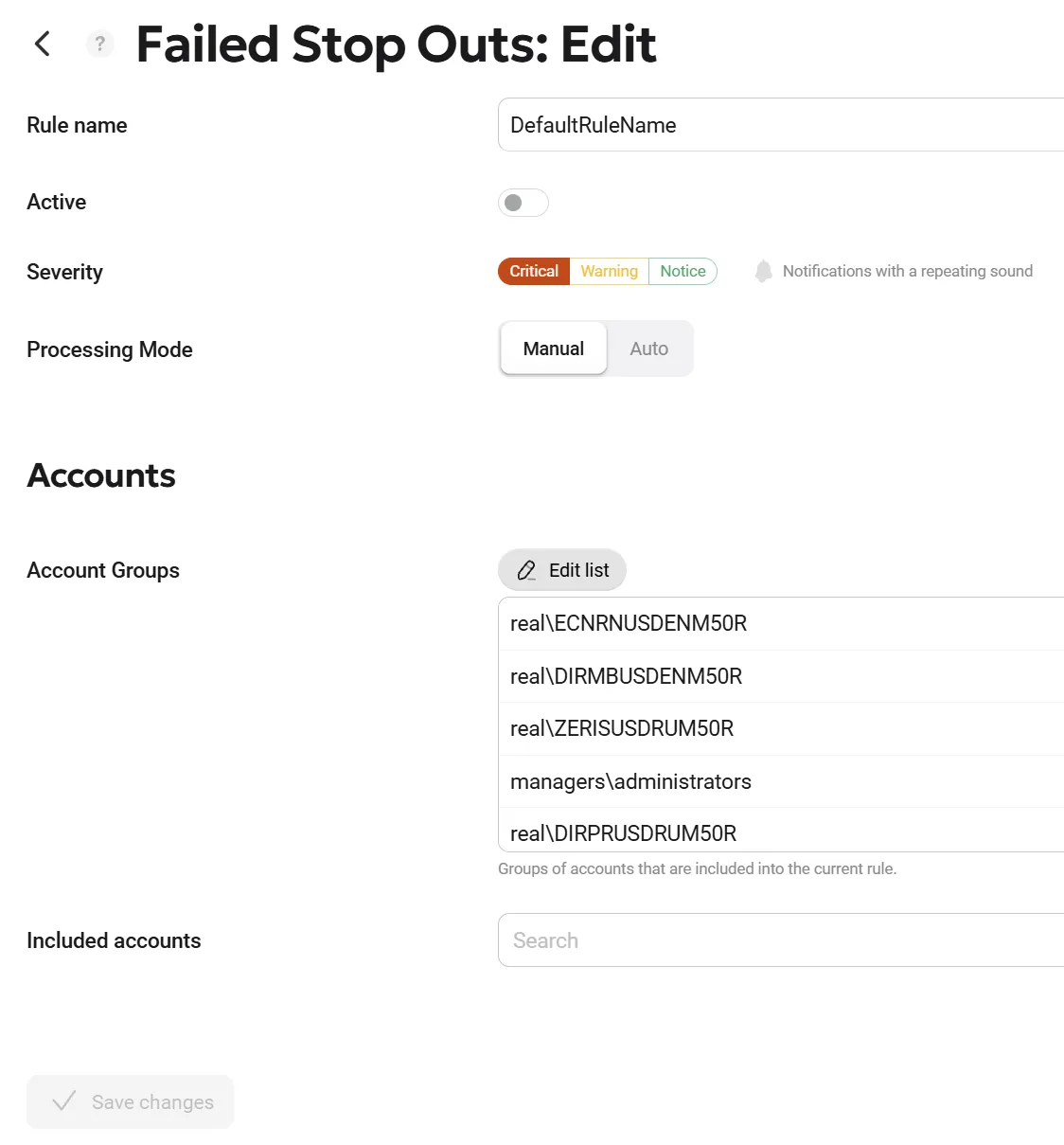
- Rule name: Enter a clear, descriptive name for the trigger (e.g., "DefaultRuleName" or "VIP Accounts Check").
- Processing Mode: Users have the option to choose whether a triggered event requires manual confirmation (by clicking the "Accept" button, mode Manual) or is purely informational (mode Auto). This enhancement reduces routine actions and allows users to focus exclusively on critical events without the distraction of constantly clicking through informational notifications. You can still view automatically processed notifications on the Risk Management page by enabling the Only auto toggle, or in the top header by activating the Show automatic notifications toggle.
- Active: Use this toggle switch to enable (turn on) or disable (turn off) the rule without needing to delete it.
- Severity: Define the alert level generated when this trigger fires. You can choose between:
- Critical (Red)
- Warning (Yellow)
- Notice (Green)
Accounts
This section defines the scope of the accounts that the rule will monitor.
- Account groups: Click the Edit list button to open the side panel containing your server's folder structure. Here, you can select specific groups of accounts (e.g., demo groups, real groups, or specific B-book/A-book folders) to be included in the rule. Selected groups will appear in a list; you can remove them individually by clicking the trash bin icon next to their name.
- Included accounts: If you want to monitor specific, individual account numbers rather than an entire group, you can search for and add them using this dropdown field.
Once you have configured all the parameters, click the Save changes button on the left to apply the rule.
Permissions
| MT4 | MT5 |
|---|---|
| No specific permissions required. | No specific permissions required. |
Trigger Logic
- The trigger monitors accounts every minute.
- For each account, the system calculates actual equity.
- If equity is below 0 and there are open positions, the trigger generates a notification.
- If the account remains in negative equity for 1 hour, a new notification is generated.