Mini Accounts
General Information
The Mini Accounts trigger is an automated risk management and monitoring tool designed for brokers operating MetaTrader 4 (MT4) and MetaTrader 5 (MT5) platforms. Its primary purpose is to continuously scan designated cent accounts and instantly alert the dealing desk or account managers when a client's equity surpasses a predefined threshold.
Understanding Cent Accounts in MT4 and MT5
To understand the value of this trigger, it is essential to look at how Cent Accounts (sometimes called Micro accounts) are structured inside MT4 and MT5:
-
100x Currency Denomination: In a standard account, the balance is displayed in major currencies (e.g., USD or EUR). In a cent account, the base currency is modified to cents (e.g., USC or EUC). A client deposit of $100 USD is displayed on the terminal as 10,000 cents.
-
Reduced Contract Sizes: On MetaTrader platforms, a standard lot is 100,000 units of the base currency. For cent accounts, brokers configure custom symbols (e.g., EURUSDc) or specific group settings where 1 lot equals only 1,000 units. This allows users to trade with contract sizes as small as 0.01 cent lots (equivalent to just 10 units of currency).
-
Purpose: These accounts are heavily used by retail brokers to attract beginners trading with minimal capital, or by algorithmic traders to test Expert Advisors (EAs) in a live market environment with negligible financial risk.
The Broker's Challenge: Because cent accounts scale everything down by 100x, they are usually kept on separate, low-priority server groups or entirely managed on the B-Book (internalized risk). However, if a cent account grows too large, it can disrupt this ecosystem.
Menu Navigation
To access this trigger, navigate to Risk Management > Additional in the main sidebar and locate the Mini Accounts card.
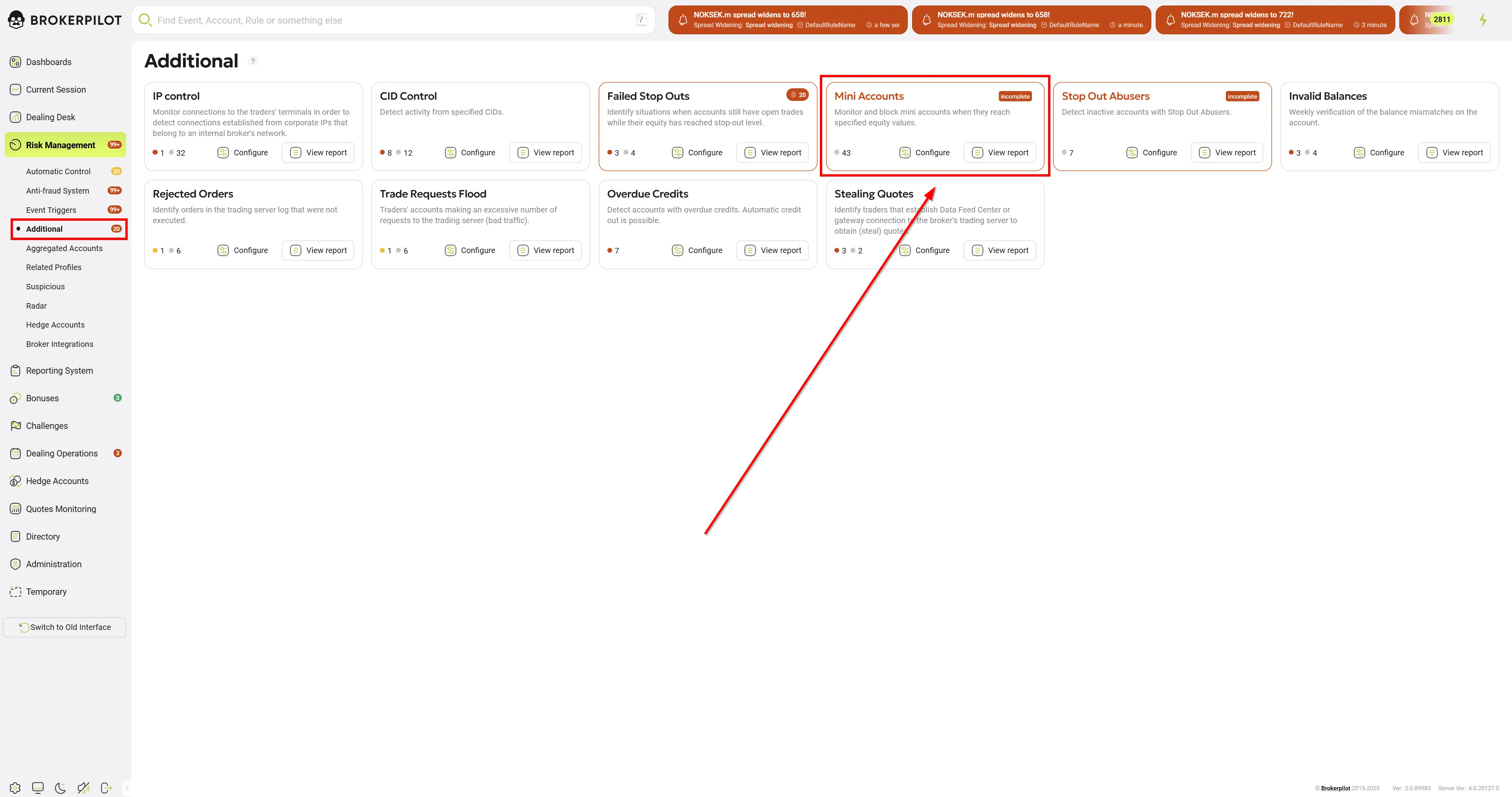
From the main card, you can view the number of active rules and quickly access the Configure or View report sections.
Configuring Rules
Clicking the Configure button on the Mini Accounts card opens the rule management dashboard.
-
Server/Platform Filters: At the top of the screen, you can filter your existing rules by trading platforms and servers (e.g., All, MT4, MT5, cTrader).
-
Rule Management: Each existing rule is displayed in a list showing its State (Active/Inactive) and Details (Name and assigned Server). You can Edit or Delete (trash bin icon) any existing rule directly from this list.
-
Top Toolbar Options:
- Export/Import rules: Download your current configurations or upload existing ones, which is useful for backing up setups or migrating them between environments.
- Add rule: Click this button to create a new monitoring configuration.
Adding or Editing a Rule
When you choose to add a new rule or edit an existing one, you will need to define the following parameters:
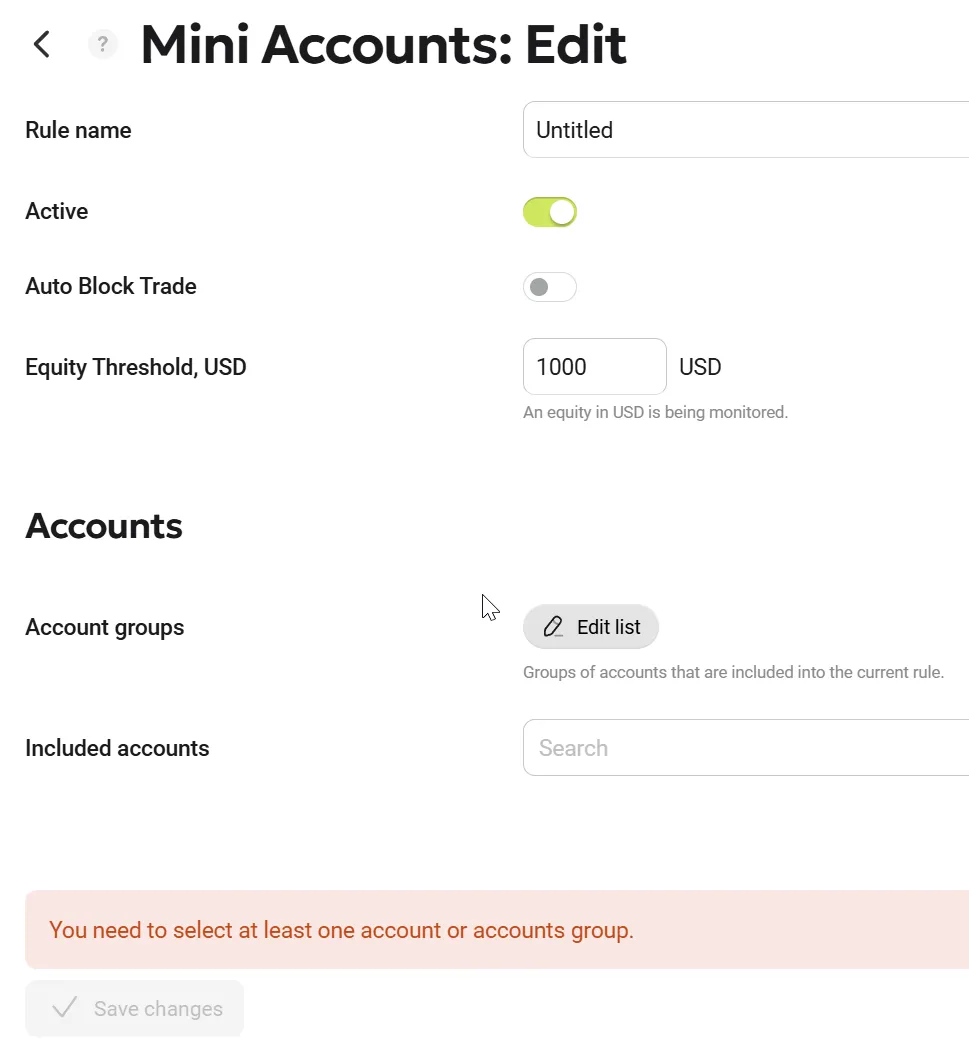
General Settings
| Parameter Name | Description |
|---|---|
| Rule name | Enter a clear, descriptive name for the trigger (e.g., "DefaultRuleName" or "VIP Accounts Check") |
| Active | Use this toggle switch to enable (turn on) or disable (turn off) the rule without needing to delete it. |
| Severity | Define the alert level generated when this trigger fires. You can choose between: Critical (Red), Warning (Yellow), Notice (Green) |
| Auto Block Trade | Automates account blocking if enabled. |
| Equity Threshold, USD | Sets the threshold value that triggers an alert. |
Accounts
This section defines the scope of the accounts that the rule will monitor.
- Account groups: Click the Edit list button to open the side panel containing your server's folder structure. Here, you can select specific groups of accounts (e.g., demo groups, real groups, or specific B-book/A-book folders) to be included in the rule. Selected groups will appear in a list; you can remove them individually by clicking the trash bin icon next to their name.
- Included accounts: If you want to monitor specific, individual account numbers rather than an entire group, you can search for and add them using this dropdown field.
Once you have configured all the parameters, click the Save changes button on the left to apply the rule.
Permissions
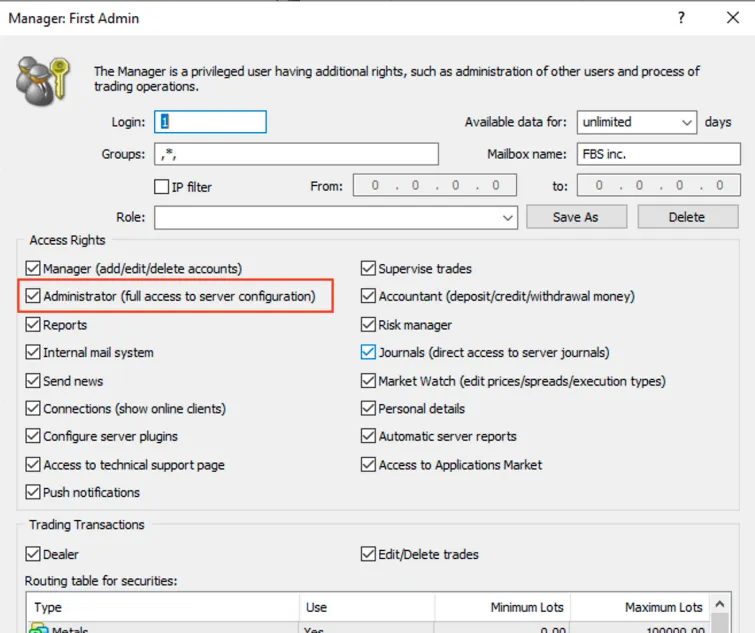
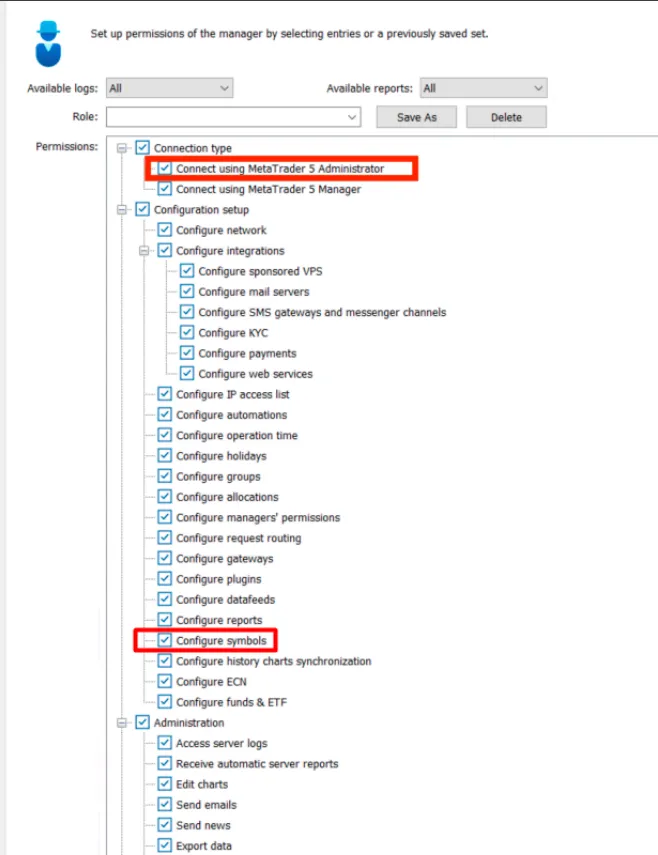
For the Auto Block Trade feature to work, the following permissions are required:
MT4
MT5
Trigger Logic
- The system monitors mini accounts in real-time.
- If an account’s equity exceeds the threshold, the trigger generates a notification.
- If Auto Block Trade is enabled, the system automatically blocks trading for the detected account.
- Accounts with open positions are not blocked.
- New mini account groups added to the MT server are automatically detected and displayed in the system.