Related Profiles
General Information
The Related Profiles section in Brokerpilot helps brokers identify accounts and logins that are connected by specific criteria.
📌 This makes it easy to detect clients with multiple accounts based on:
- CID number
- IP address
- Full name
- ID number
Menu Navigation
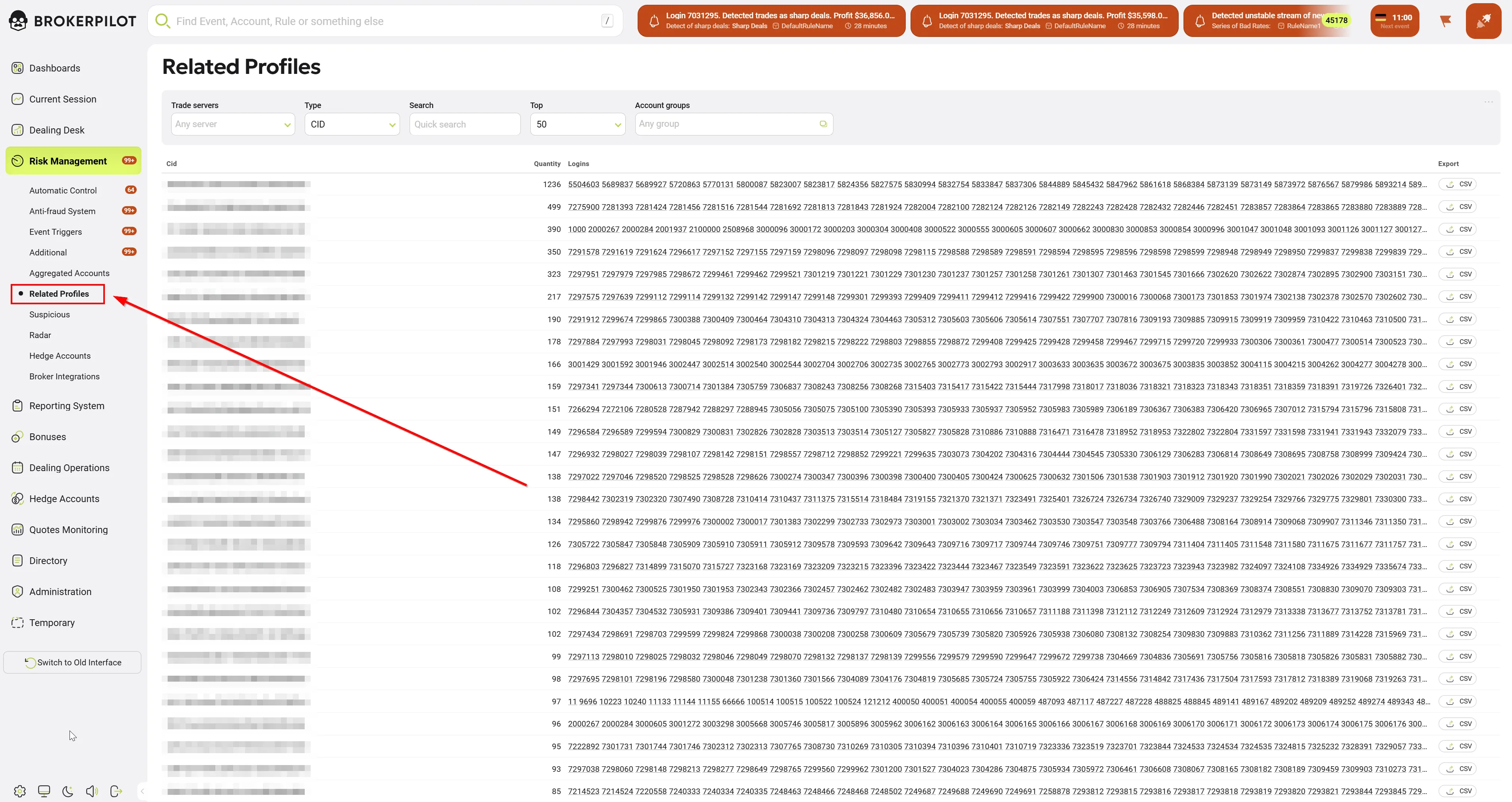
You can find the Related Profiles page in Risk Management section.
Searching for Related Information
- Select a parameter from the drop-down menu.
- The system will display all related logins and their total count.
- You can export the results in .CSV format for further analysis.
Navigating to Aggregated Accounts
📌 Clicking on a parameter value in the search chart will redirect you to the Aggregated Accounts page for a deeper analysis.
Exclude CDN / Cloudflare IPs (only available when IP parameter is selected)

Feature Overview
Goal: The core purpose of this feature is to allow the user to hide IP addresses belonging to CDN and Cloudflare networks. This enables risk managers and administrators to see the actual (real) user IP addresses if they have bypassed the protection.
Instructions for use: This is a professional technical guide you can send to your client’s CTO or Lead Systems Engineer. It explains why they see Cloudflare IPs and how to fix it using Proxy Protocol.
Technical Guidance: Restoring Client IP Visibility Behind Cloudflare Spectrum
The Issue
Currently, your trading servers (MT4/MT5/cTrader) are receiving traffic through Cloudflare Spectrum. As a result, the source IP address for all incoming connections is recorded as a Cloudflare Edge IP (e.g., 172.69.x.x).
This creates a "blind spot" for risk management, as multiple independent traders appear to be connecting from the same address, triggering false positives in Related Profiles and making it impossible to identify toxic trading groups or geographical risks.
The Solution: Proxy Protocol v2
To see the actual IP addresses of your traders, you must enable Proxy Protocol. This is an industry-standard method for a proxy (Cloudflare) to pass the original client's connection information (IP and Port) to the destination server.
Step 1: Enable Proxy Protocol on Cloudflare
You need to toggle the Proxy Protocol setting for your Spectrum applications in the Cloudflare dashboard:
- Log in to your Cloudflare Dashboard.
- Navigate to Spectrum.
- Locate the application/entry for your trading server.
- Enable Proxy Protocol (Select Version 2 as it is more efficient and supports IPv6).
Step 2: Configure Your Trading Infrastructure
Since the trading server receives a modified TCP packet containing the Proxy Protocol header, your infrastructure must be configured to "unwrap" this header.
Option A: Using a Load Balancer (Recommended) If you use HAProxy, NGINX, or AWS NLB in front of your trading servers, configure them to accept Proxy Protocol:
- HAProxy example: Add
accept-proxyto your bind line in the configuration. - NGINX example: Add
proxy_protocolto thelistendirective in your stream module.
Option B: Direct Integration
If your trading platform or bridge provider supports Proxy Protocol natively, enable it in the server settings to ensure the logs record the X-Forwarded-For or the original source IP correctly.
Business Benefits
- Accurate Risk Analysis: Restore the ability to detect "Related Profiles" and "Account Clusters" accurately.
- Security: Allows for precise blacklisting of toxic IPs without affecting legitimate users.
- Compliance: Proper logging of trader locations for regulatory reporting.
Note: Enabling Proxy Protocol without configuring the destination server to accept it will cause connection failures, as the server will not understand the header. We recommend testing this in a UAT/Demo environment before applying it to Production.
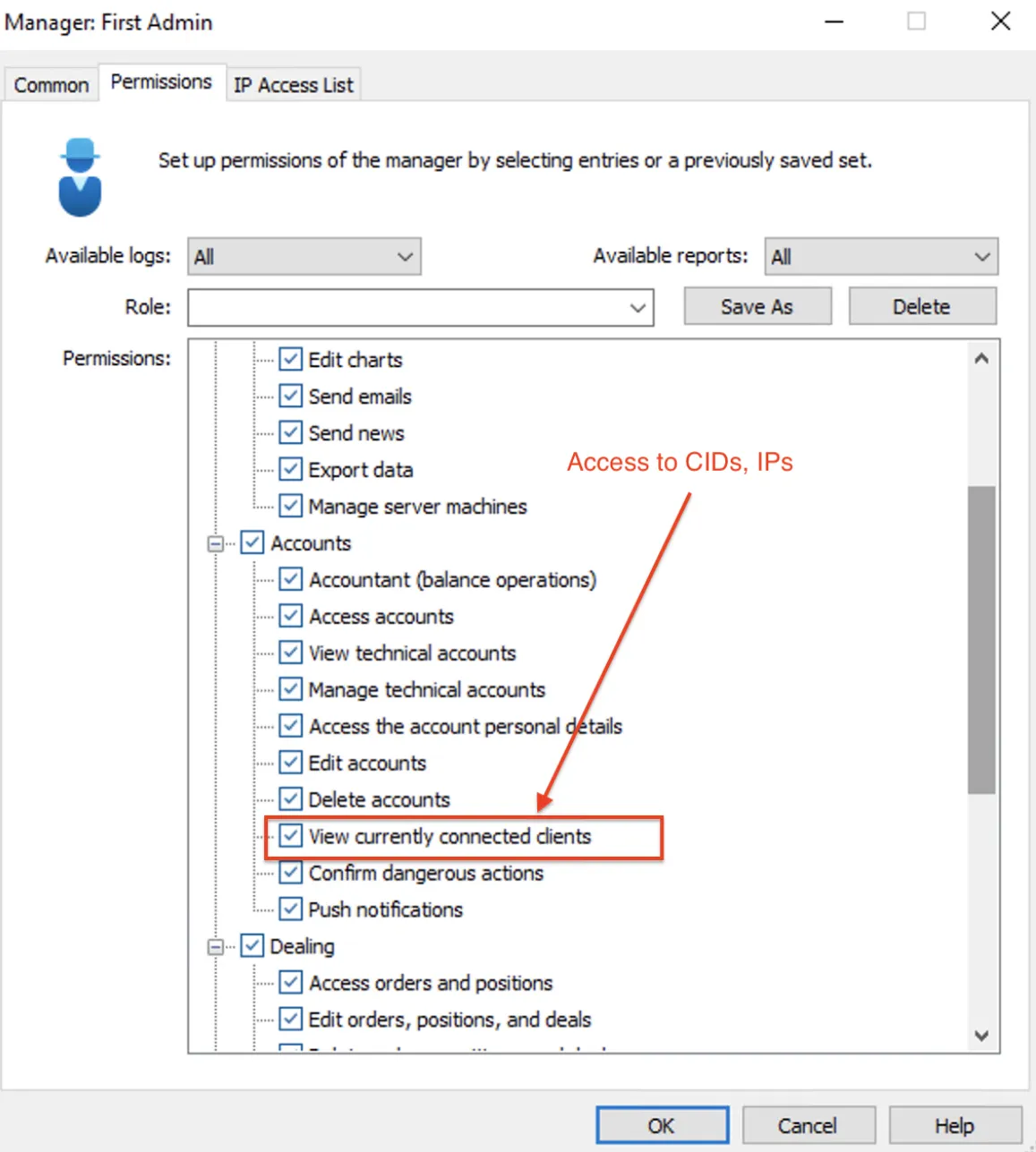
Permissions for MT5