Tags
1. From "Suspicious" to "Tags"
The Suspicious page has been renamed to Tags. This change was made because the standalone "suspicious" account state no longer exists within the system.
You can label trading accounts with tags such as "HFT", "Arbitrage" or "VIP". The Tags page lists every account that has at least one tag. On this page you can:
- find tagged accounts by trade server, login or tag,
- add tags to an account or remove them,
- add or remove tags on many accounts at once,
- create, rename, recolor and delete tags,
- export the list to CSV,
- open an account's card or block an account.
Tags are shared across the whole system. A tag you create here also appears on the account card, in the tag filters and in the trigger rules that select accounts by tag. Renaming or recoloring a tag changes it everywhere it is used.
Suspicious Accounts Migration: The old "Suspicious" account state has been successfully migrated to the new tagging system. Accounts previously marked as suspicious have been assigned a
Suspicious_Legacytag, and their historical comments have been moved to the Comments tab within the account card and also to the Comment column in the newly updated Tags page.

2. Interface & Data Table Description
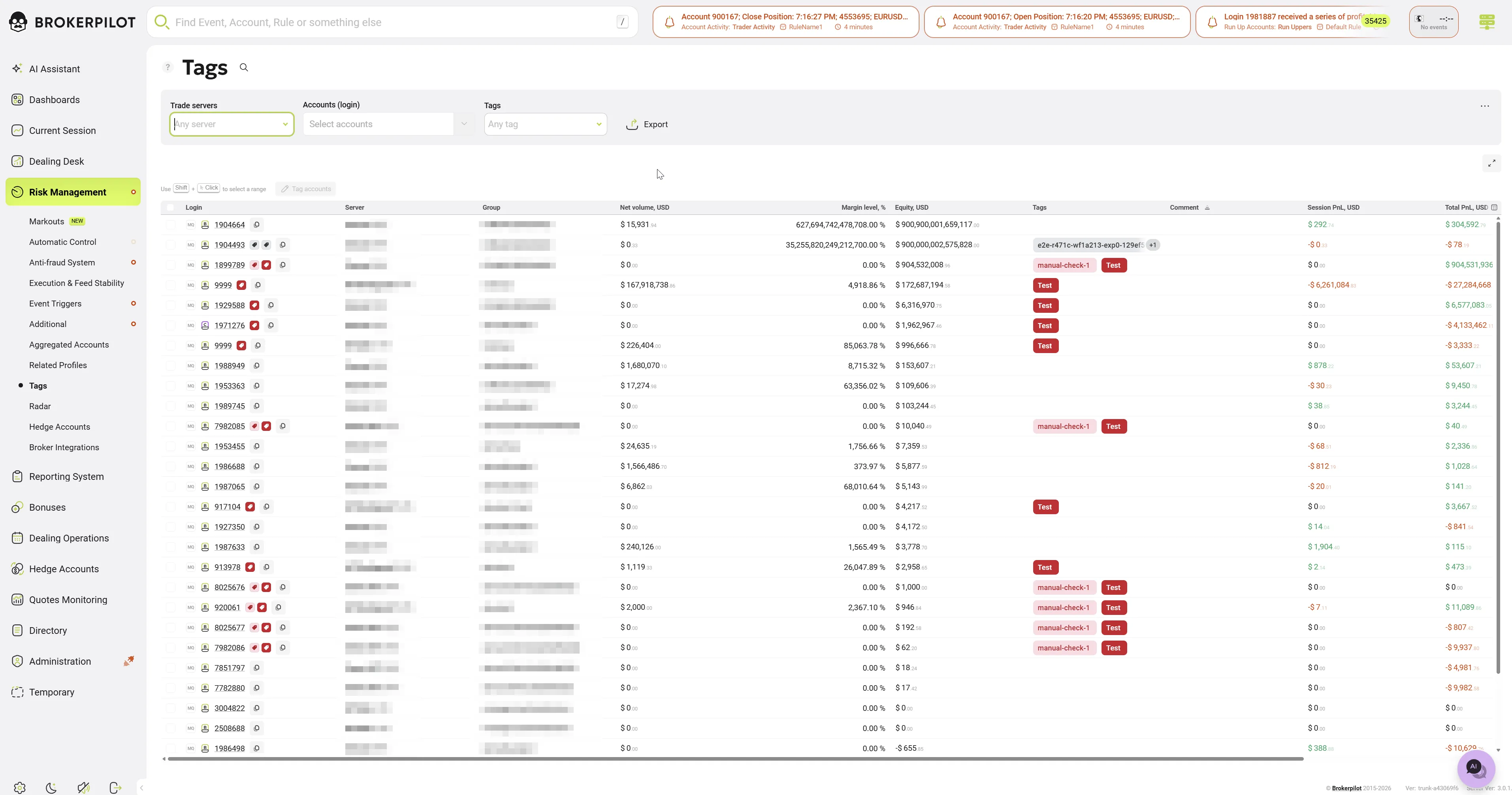
Page layout
- Header: the page title Tags and a help link.
- Filters panel: filter templates, Trade servers, Accounts (login), Tags and Export.
- Table toolbar: quick search, Export (shown only in full-screen mode) and the full-screen toggle.
- Selection toolbar: a hint ("Use Shift + Click to select a range") and the Tag accounts button. It appears when the table has at least one row.
- Accounts table: one row per tagged account.
Filters
| Filter | What it does |
|---|---|
| Filter templates | Save the current filter set as a template, or apply a saved one. |
| Trade servers | Limit the list to the selected trade servers. The default is Any server. |
| Accounts (login) | Limit the list to specific logins. You can paste several logins at once. |
| Tags | Show only accounts that have any of the selected tags (OR logic). The default is Any tag. Tags applied to an account's group count too. |
The page always shows tagged accounts only. Accounts without tags never appear here.
Table columns
| Column | Shown by default | Description |
|---|---|---|
| ☐ (selection) | Yes | Checkbox for selecting the row. The header checkbox selects all rows. |
| Login | Yes (cannot be hidden) | The account login. Click it to open the account card. |
| Server | No | The trade server the account belongs to. |
| Group | Yes | The trading group. |
| Net volume, USD | Yes | Net volume. Sorting uses the absolute value. |
| Margin level, % | No | Current margin level. |
| Equity, USD | Yes | Current equity. |
| Session PnL, USD | Yes | Profit or loss for the current session, shown in colour. |
| Total PnL, USD | No | Total profit or loss. The table is sorted by this column by default (largest absolute value first). |
| Tags | Yes | The account's tags as coloured badges. If they don't fit, a "+N" counter shows how many are hidden. You can't sort by this column. |
| Comment | Yes | The latest comment left on the account. |
| Change tag (button) | Yes | Opens the tag editor for this account. |
| Block (button) | Yes | Opens the block dialog for this account. |
You can show or hide, reorder, resize and pin columns. The table remembers your layout.
Actions
1. Search and filter tagged accounts
- Set the filters you need (Trade servers, Accounts (login), Tags).
- To narrow the list further, type in the quick search box in the table toolbar.
2. Export the list to CSV
Click Export in the filters panel, or in the table toolbar when the table is in full-screen mode.
- The file is named
tagged-accountsand contains the accounts that match the current filters. - It includes only the columns that are currently visible. Login is always included. The Change tag and Block button columns are never exported.
- The button is disabled when the table is empty.
3. Open an account information page
Click the Login of any row. The account card opens in a modal window.
4. Block an account
Click Block in the account's row. The standard block dialog for that account opens.
5. Change the tags of a single account
- Click Change tag in the account's row.
- A window titled Login: <login> opens. It lists every available tag with a checkbox.
- To find a tag, type in Search tags....
- Tick a checkbox to add that tag to the account, or untick it to remove the tag.
- Each change is saved as soon as you click. There is no Save button.
- Close the window. The table reloads with the updated tags.
The same window also lets you create a new tag (see 7) and edit or delete an existing one (see 8 and 9).
If no tags exist yet, the window shows "No tags. Start organizing your items by creating your first tag" and a New tag button.
6. Add or remove tags on many accounts at once (bulk tagging)
-
Select accounts with the row checkboxes.
- To select a range, hold Shift and click.
- The header checkbox selects all rows currently shown.
-
Click Tag accounts. The button is active only when at least one row is selected.
-
In the Edit tags to selected accounts window:
- In Add tag, pick the tags to add.
- In Tags to remove, pick the tags to remove.
- A tag can't be in both lists. Picking it in one list disables it in the other.
-
Before you apply anything, check the Action summary:
Section Line Meaning Adding Tags ✖ Duplicates (N) These accounts already have the tag. Nothing will change for them. Adding Tags ✔ Eligible Accounts (N) These accounts don't have the tag yet. It will be added. Removing Tags ✖ Not found (N) These accounts don't have the tag. Nothing will change for them. Removing Tags ✔ Eligible Accounts (N) These accounts have the tag. It will be removed. - Each line lists the affected logins. If there are more than 5, click View details to open a list you can search by login.
- If you haven't picked any tags, the window shows "No changes selected".
-
Click Update.
- The button is disabled if nothing would actually change, or if a previous bulk update is still running.
- Only the eligible accounts are updated. Tags you didn't pick are left untouched on every account.
-
When the update finishes:
- the table reloads,
- your selection is cleared,
- a "Tags updated successfully" message appears, for example: "Added: HFT — accounts: 12 · Removed: VIP — accounts: 3".
To create a tag without leaving the window, click New tag in its footer.
7. Create a tag
You can create a tag in two places:
- the New tag button in the single-account window (5),
- the New tag button in the bulk window (6).
Steps:
- Click New tag. The Create window opens.
- Enter a Name (required, up to 30 characters).
- Pick a colour under Colors.
- The window pre-selects the first colour that no other tag uses.
- Colours already used by other tags are disabled, with the tooltip "This color already used."
- Check how the tag will look under Preview.
- Click Create. The new tag appears straight away in every tag picker and filter.
Creating a tag doesn't assign it to any account. Assign it with 5 or 6.
8. Edit a tag (rename or recolor)
- In the single-account window, click the pencil icon next to the tag.
- In the Edit window, change the Name and/or the colour.
- Click Update.
The change applies everywhere the tag is used. Trigger rules that select accounts by this tag keep working, because they refer to the tag itself, not to its name.
9. Delete a tag
- Click the pencil icon next to the tag to open the Edit window.
- Click Delete.
⚠️ The tag is deleted at once, with no confirmation prompt. It is removed from the catalogue and from every account and group that had it.
Rules and limits
| Rule | Value |
|---|---|
| Tag name | Required. The form accepts up to 30 characters. Leading and trailing spaces are trimmed. |
| Tag colour | Each tag needs a unique colour. There are 16 user colour presets: 8 light and 8 filled shades of grey, red, orange, blue, purple, green, emerald and yellow. One more preset is reserved for the system tag. |
| Number of tags | In practice limited by the number of free colours. Once every colour is taken, you can't create a new tag until you free a colour by deleting or recolouring a tag. |
| Tags per account / per group | At most 100. If any selected account is already at the limit, the server rejects the whole add request for that tag. |
System tag Suspicious_Legacy | Created automatically when data is migrated from the old Suspicious accounts feature. You can't rename or delete it. |
| Tag names must be unique | Not enforced by the current server code. Two tags can have the same name, so pick clear names. |
| Group tags | A tag can also be applied to a trading group. Accounts in that group are treated as having the tag for filtering and trigger rules. |