Permissions
1. Overview
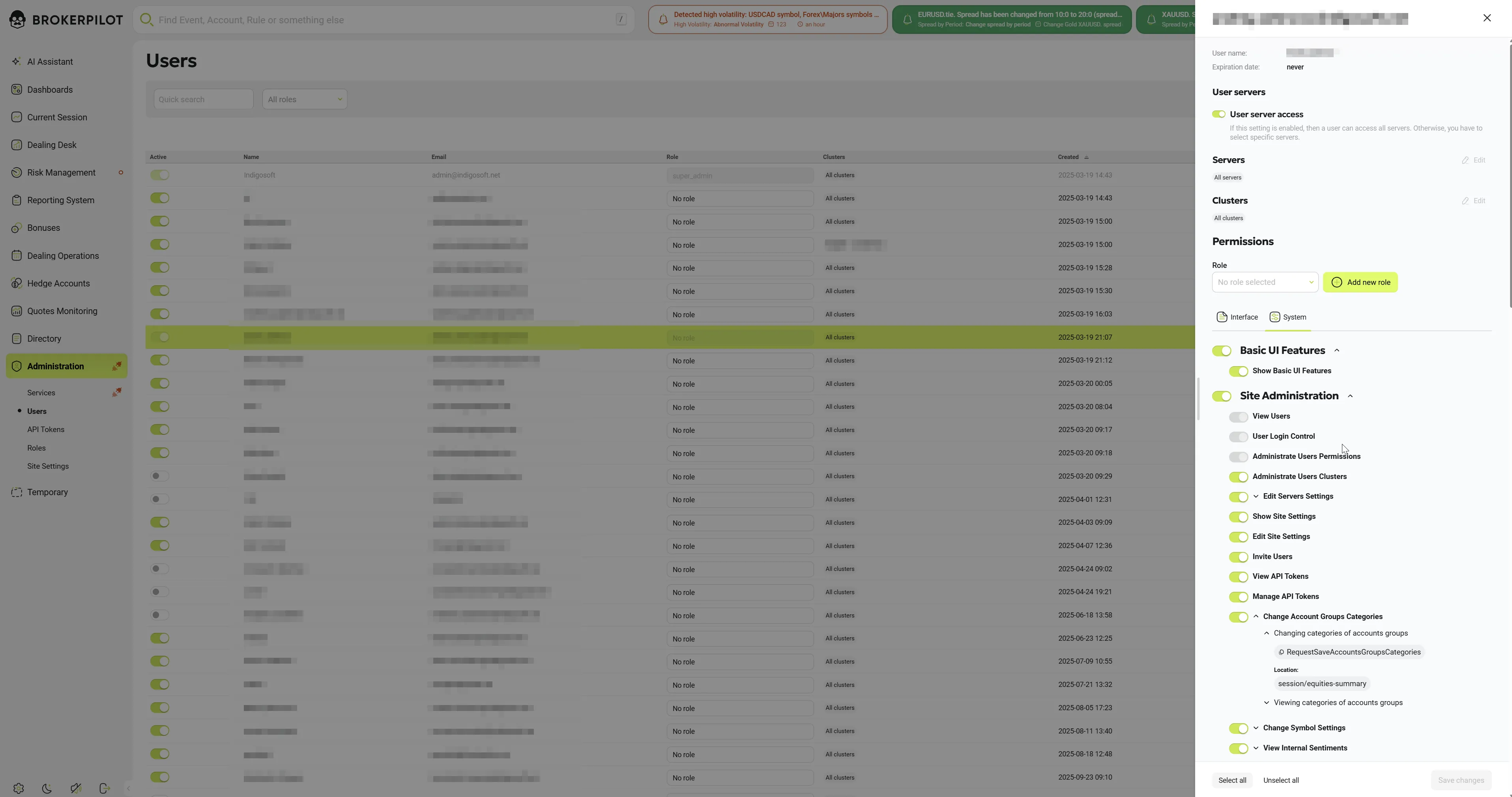
The Permissions panel controls what a Brokerpilot user can see and do. An administrator opens it from Administration → Users by clicking a user's row. A side panel (drawer) opens on the right. In this panel, the administrator can:
- view the user's details and set an expiration date for the account;
- choose which servers or clusters the user can access;
- assign a role (a saved set of permissions), or create a new role from the current set;
- switch individual permissions on or off. Permissions are split into two tabs: Interface and System.
Changes are not applied immediately. They are collected in the drawer and sent to the server only when you click Save changes.
2. Who can use it
| What you need to do | Required permission (tab → group → item) |
|---|---|
| Open the Users page | Interface → Administration → Users |
| Open a user's Permissions drawer (click a row) | Interface → Administration → Administrate Users Permissions |
| See and change the Role column in the Users grid; save roles/permissions on the server | System → Site Administration → Administrate Users Permissions |
| See the Active column; see the expiration date | System → Site Administration → User Login Control |
| See and change the User servers block (server access, servers, clusters) | System → Site Administration → Administrate Users Clusters |
| Invite users (Add user button) | System → Site Administration → Invite Users |
| Edit the expiration date | The current user must have the role admin or super_admin. A permission alone is not enough. |
If you lack the permission for a block, that block shows a Permission Required placeholder.
3. Opening the drawer
- Go to Administration → Users.
- Optionally filter the list by search text (name or e-mail) or by role.
- Click the user's row. Clicks on buttons, toggles or the role selector inside the row do not open the drawer.
- The drawer opens on the right. The page behind it is dimmed and the selected row stays highlighted. The drawer header shows the user's e-mail and a close (×) button.
Clicking another row while the drawer is open reuses the same drawer for the newly selected user.
4. Drawer layout
4.1 User details
| Field | Description |
|---|---|
| User name | The user's name (read-only). |
| Expiration date | The date after which the account expires. Only admin and super_admin can change it. Clearing the field removes the expiration. |
For service users, the drawer shows Service name and Registration date instead.
4.2 User servers
| Control | Behaviour |
|---|---|
| User server access (switch) | On: the user can access all servers. The summary shows All servers / All clusters and both Edit buttons are disabled. Off: you must restrict the user to specific servers or specific clusters. Hint text: "If this setting is enabled, then a user can access all servers. Otherwise, you have to select specific servers." |
| Servers → Edit | Opens a second drawer that lists every server, each with a switch. Click Save changes in that drawer to return the selection to the main drawer. The selected servers appear as chips. |
| Clusters → Edit | The same, for server clusters. The selected clusters appear as chips. |
Servers and clusters are mutually exclusive. After you select at least one server, the clusters Edit button is disabled, and the other way round. To switch modes, first clear the current selection.
Saving in the Servers or Clusters drawer only updates the main drawer. Nothing is sent to the server until you click Save changes in the main drawer.
4.3 Role
| Control | Behaviour |
|---|---|
| Role (searchable dropdown) | Lists No role selected plus every role that can be assigned. Protected system roles (for example super_admin) are not listed. When you pick a role, the permission switches immediately show that role's permission set. |
| Add new role | Available only while No role selected is chosen. It opens a Role name field with Save role and Cancel buttons. |
| Save role | Creates a new role straight away. The role contains the permission switches that are currently on, and it is preselected for this user. The assignment itself is saved only with Save changes. Hint: "Unsaved role will have 'No role' status". |
Possible messages:
- "A role with this name already exists." — the role could not be created.
- "Failed to save role permissions" — the role was created, but its permissions could not be saved.
For detailed instructions and full lists, refer to the Roles documentation.
4.4 Permissions
The permission list has two tabs:
| Tab | Purpose |
|---|---|
| Interface | Access to application sections and pages (navigation menu, page widgets). |
| System | Functional and data-level rights, for example viewing accounts, exporting, or changing settings. Many system permissions depend on other permissions. |
Each tab is a list of groups:
- Group header switch: it is on when every permission in the group is on. Turning it on or off changes every permission in the group, including subgroups. Locked permissions are skipped.
- Chevron (▲/▼): expands or collapses the group. All groups start expanded.
- Permission row: a switch plus a label. Hover over the label to see a description tooltip, if one exists.
- Grants details: if a permission controls backend requests, its row has its own chevron. Expanding the row lists every operation the permission grants. Expand an operation to see:
- the request name as a chip (click to copy it);
- Location: the application pages where the request is used.
- Some Interface items cover several technical permissions, for example Exposures or Dealing Streams. Their single switch turns all of them on or off together.
4.5 Footer
| Button | Behaviour |
|---|---|
| Select all | Turns on every permission on both tabs. |
| Unselect all | Turns off every permission. If you are editing your own account, the permissions you need to manage users stay on. |
| Save changes | Sends all pending changes to the server. It is active only when there is something to save. |
5. Roles vs. individual permissions
-
While a role is assigned, the role defines the user's access. The server calculates the user's permissions only from the role and ignores any individual permissions.
-
Picking a role fills the switches with that role's permissions straight away.
-
Picking "No role selected" for a user who had a role turns all permission switches off. You then build the set by hand. The server also clears the user's individual permissions when the last role is removed.
-
Changing any switch while a role is assigned unlinks the role, because the user's set no longer matches it. The role selector changes to No role selected and a warning appears:
Role unlinked — "This user's permissions no longer match the assigned role, so it has been unlinked. Save as a new role if you want to keep this set."
To keep the new combination as a reusable role, use Add new role → Save role.
-
A user who holds a protected role (for example
super_admin) cannot have that role changed. The role selector is locked for that user.
For detailed instructions and full lists, refer to the Roles documentation.
6. Permission dependencies (System tab)
Some System permissions only work if other permissions are also on. The drawer keeps the set consistent automatically:
- When you turn a permission on, every permission it requires is turned on too.
- When you turn a permission off, every permission that depends on it is turned off too.
Example: turning on Export Trading Accounts also turns on View Trading Accounts. Turning off View Trading Accounts turns off Export Trading Accounts, View Top Trading Accounts, Changing Account's Trading Leverage and the other permissions that depend on it.
Permission Reference
How the two tabs work together
| Interface tab | System tab | |
|---|---|---|
| Controls | What the user can see and open: navigation-menu sections and items, pages, pop-up cards (modals). | What the user can load and do: the data requests the application sends to the trading servers, and action buttons such as Block trade, Export or Edit settings. |
| When a switch is OFF | The menu item is hidden, and the page cannot be opened even by typing its URL. | The server rejects the corresponding operations, so data does not load, and the related buttons or controls are hidden. |
| Dependencies | None. Every switch is independent. | Yes. Some permissions require others. |
A user usually needs both. For example, to work with Current Session → PnL Details, the user needs PnL Details on the Interface tab, so the page is reachable, and View PnL Statistics on the System tab, so the page can load its data. If only the Interface permission is on, the page opens but shows no data or an access error.
Interface Tab Reference
Legend: Menu is where the item appears in the left navigation. Page / URL is the route that is blocked when the permission is off.
Global
| Permission | ON | OFF |
|---|---|---|
| Basic Navigation Display (Header) | Informational row; there is no switch. The header and basic navigation are always available. | — |
| Dashboards | Dashboards menu section and the Create dashboard action; the user can view and create dashboards (/dashboard). | The Dashboards section is hidden. |
| Reporting System † | Reporting System menu section (/reporting-system). To show the page content, the System permission Show Basic UI Features is also needed. | The section is hidden and the URL is blocked. |
Current Session
| Permission | ON: menu item / page | System permission needed for data |
|---|---|---|
| Session Overview | Opens the Current Session summary page (/session). | View PnL Statistics |
| PnL Overview | Also opens the Current Session summary page. It also opens the PnL pop-ups on account and order cards. | View PnL Statistics |
| PnL Details | Current Session → PnL Details (/session/pnl-details, PnL history). | View PnL Statistics |
| Winners & Losers | Current Session → Winners & Losers (/session/winners-losers) and the Top symbol volumes page. | Winners And Losers |
| Session Realized | Current Session → Session Realized (/session/realized-orders). | Session Realized Orders |
| Equities by Groups | Current Session → Equities by Groups (/session/equities-summary). | Session Equities data (View Trade Orders) |
| Top Accounts Volumes | Current Session → Top Accounts Volumes (/session/top-turnover). | B-Book View Top Accounts |
| Top Symbols Volumes | Current Session → Top Symbols Volumes (/session/top-symbols-volumes). | B-Book View Top Symbols Volumes |
| Deposits & Withdrawals | Current Session → Deposits & Withdrawals (/session/balance-operations). | View Trade Orders |
| Balances Summary | Current Session → Balances Summary (/session/balance-operations-summary). | View Trade Orders |
| Agent Commissions | Current Session → Agent Commissions (/session/agent-commissions). | View Agent Commissions |
| New Funded Accounts | Current Session → New Funded Accounts (/session/new-funded-accounts). | New Funded Accounts |
| Stop Outs | Current Session → Stop Outs (/session/stop-outs). | Stop Outs data |
Dealing Desk
| Permission | ON: menu item / page | System permission needed for data |
|---|---|---|
| Dealing Desk | Dealing Desk menu section. | Dealing Desk Overview |
| Net Summary | Dealing Desk → Net Summary (/dealing/net). | A/B-Books Net Summary |
| A/B Books Net | Dealing Desk → A/B Books Net (/dealing/net-comparison). | A-Book Net Positions and B-Book Net Positions |
| Net by Countries | Dealing Desk → Net by Countries (/dealing/geo-activity). | B-Book Net Positions, View Trading Accounts |
| Market makers | B-Book Market makers page. | B-Book Market Makers |
| Exposures (covers 3 technical permissions) | Dealing Desk → Exposures. Total, A-Book and B-Book exposure together. | Exposure Statistic / A-Book Exposure Statistic / B-Book Exposure Statistic |
| Top Volumes | Dealing Desk → Top Volumes (/dealing/top-volumes). | B-Book View Top Accounts |
| Top Margin | Dealing Desk → Top Margin (/dealing/top-by-margin-level). | View Margin Calls of Trading Accounts |
| Top Clients | Dealing Desk → Top Clients (/dealing/top-by-category). | View Top Trading Accounts. Export buttons need Export A-Book Top Clients. |
| Winners & Losers | Dealing Desk → Winners & Losers (/dealing/winners-losers, total history). | Total History Winners And Losers |
| Dealing Streams (covers 2 technical permissions) | Dealing Desk → Dealing Streams (/dealing/stream). | Rates Stream and/or Trade Stream |
| Margin Calls | Dealing Desk → Margin Calls (/dealing/margin-call). | View Margin Calls of Trading Accounts |
| Dealing Events | Dealing Desk → Dealing Events (/dealing/dealing-events). | Trade Stream |
| A-Book Settings | Dealing Desk → A-Book Settings (/dealing/settings). | Edit A-Book Settings |
| Dealing Settings | Dealing Desk → Dealing Settings (/dealing/dealing-settings, server settings). | Edit Servers Settings |
| A-Book Market Makers | Interface flag for A-Book market makers. | A-Book Market Makers |
| A-Book Top Volumes | Interface flag for A-Book top volumes. | A-Book Top Volumes |
| Custom Groups Volumes | B-Book net pages (b-book/net) and Custom Groups Volumes. | B-Book Net Positions |
| B-Book Top Volumes | B-Book Top volumes and Top by category pages. | B-Book View Top Accounts |
| Symbol Charts | Symbol chart pages. | Symbol Charts |
Risk Management
The group header is linked to Risk Management (Show issues, the overview). Turning on Risk Management also opens the Issue and Job pop-up cards and enables issue counters in the menu.
| Subgroup / Permission | Associated Triggers / Pages (ON) |
|---|---|
| Automatic Control | Net Dynamic Leverage, Dynamic Leverage, Leverage by Equity, Change spread by period, Change Spread by Volume, Swaps Free Accounts, Admin fees, Trade Restriction Period |
| Anti-fraud System | Scalpers HFT, Sharp Deals, Achieved Profit, Latency Arbitrage, Series of Bad Rates, Large volumes by account/order, Agent Commissions, Affiliate Cheating |
| Execution & Feed Stability | New Rates Absence, Orders Execution |
| Event Triggers | Account Events, Trader Activity, Insiders, Run Uppers, Churning Control, Symbol unusual PnL, Abnormal Volatility, Rates gaps, Spread widening |
| Additional | IP control, CID Control, Failed Stop Outs, Mini accounts, Stop Out Abusers, Invalid Balances, Rejected Orders, Trade Requests Flood, Overdue Credits, Stealing Quotes |
| Aggregated accounts | Risk Management → Aggregated accounts (/risk-management/accounts/accounts-trade-state). |
| Related Profiles | Risk Management → Related Profiles. |
| Tags | Risk Management → Tags (accounts tags). |
| Radar | Risk Management → Radar (/risk-management/accounts/radar). |
| Show Triggers Settings | Interface flag for viewing trigger settings. |
| Administration Triggers Settings | Opens the trigger and semaphore (alert) settings editing pop-ups. |
| Hedge Accounts | Margin Level, Swaps Change Alert |
| Broker Integrations | Floating Profit Level, Margin Watcher |
Data for these pages comes from System permissions: Show Issues, Processing issues, Show Triggers Settings, Administration Triggers Settings, etc.
Additional Interface Sections
- Bonuses †: Statistics, Events, History, Settings.
- Dealing Operations: Jobs list/pages, History Export †, Settings, Dealing operations jobs, Payment Systems.
- Hedge Accounts: Hedging Summary, Hedging Accounts, Hedge Net Volumes, Volumes Coverage & PnL, LP PnL / LP Swaps / LP Swaps History †.
- Quotes Monitoring †: Quotes Monitoring menu section.
- Directory: Accounts, Symbols, Contracts, Swaps, Open Positions, Credit Orders, Remove orders †, Custom Groups.
- Administration: Services, Users, Administrate Users Permissions, API Tokens, Roles, Site Settings.
System Tab Reference
For each permission: ON lists what becomes available (UI controls and server operations). OFF describes what stops working. Requires lists the permissions that are switched on automatically together with this one. Turning OFF also turns off lists the permissions that are switched off automatically.
Basic UI Features
Show Basic UI Features
- ON: the header controls (omni-search, events bar, access-expiry indicator, trading news / economic calendar), the sound on/off button in the sidebar, and the content of the Reporting System page.
- OFF: these header controls and the sound button are hidden, and the Reporting System page shows a no-access placeholder.
Site Administration
View Users
- ON: the user list on the Users page loads and updates in real time.
- OFF: the user list is not delivered.
- Turning OFF also turns off: User Login Control → Administrate Users Permissions → Administrate Users Clusters.
- 🔒 Cannot be switched off for your own account.
User Login Control
- ON: on the Users page, the Active column, Block / Unblock, and the Expiration date field in the drawer (editing the date additionally needs the admin or super_admin role).
- OFF: the Active column and the Expiration date are hidden. The server rejects block/unblock requests.
- Requires: View Users. Turning OFF also turns off: Administrate Users Permissions, Administrate Users Clusters.
- 🔒 Cannot be switched off for your own account.
Administrate Users Permissions
- ON: the Role column on the Users page. The server accepts changing a user's role and saving individual permissions.
- OFF: the Role column is hidden. Role and permission changes are rejected by the server.
- Requires: User Login Control (and therefore View Users). Turning OFF also turns off: Administrate Users Clusters.
- 🔒 Cannot be switched off for your own account. The server also refuses to save your own permission set without it.
Administrate Users Clusters
- ON: the User servers block in the user drawer: the User server access switch, and the Servers / Clusters selection.
- OFF: the block is replaced by a Permission Required placeholder.
- Requires: Administrate Users Permissions (and the chain below it).
Edit Servers Settings
- ON: changing server settings, including common, dividend, exclusion, mini-account and rollover settings.
- Viewing server settings (RequestNodesSettings) needs this permission + Dealing Operations Settings.
Show Site Settings
- ON: allows viewing the site settings.
- Turning OFF also turns off: Edit Site Settings.
Edit Site Settings
- ON: the Edit settings button on Administration → Site Settings.
- Requires: Show Site Settings.
Invite Users
- ON: the Add user button on the Users page. The server accepts invitations.
View API Tokens
- ON: the list of API tokens and their settings on Administration → API Tokens.
- OFF: the page shows a no-access placeholder.
- Turning OFF also turns off: Manage API Tokens.
Manage API Tokens
- ON: the Create API token button, plus reset, block, remove, and changing a token's access to servers and requests.
- Requires: View API Tokens.
Change Account Groups Categories
- ON: viewing and changing the categories of account groups, including the control on Current Session → Equities by Groups.
Change Symbol Settings
- ON: saving symbol settings.
View Internal Sentiments
- ON: viewing internal sentiments.
Accounts
View Trading Accounts The base permission for everything related to trading accounts.
- ON:
- searching accounts and account filter values, and resolving logins in bulk;
- the account card: trade state, short info, IPs, CIDs, daily charts, server log, comments (view, add, edit, delete), and previewing the trade state with a new leverage;
- net volume, opened and pending orders of one or many accounts (+ View Trade Orders);
- trade state of many accounts, accounts with blocked trading, agents' accounts, accounts on radar, suspicious accounts, related profiles, and the master tags catalog;
- current-session profit, profit history and active symbols for accounts;
- symbol profit by one account (+ View PnL Statistics);
- top accounts by margin call (server check).
- OFF: account data stops loading everywhere.
- Turning OFF also turns off:
- Export Trading Accounts, View Top Trading Accounts, View Margin Calls of Trading Accounts, Changing Account's Trading Leverage, Changing Accounts' Tags Status, Restrict Trading on Accounts, Export Accumulated CIDs;
- B-Book Market Makers, Export B-Book View Top Accounts;
- View Agent Commissions, New Funded Accounts, Winners And Losers (and, through it, Winners And Losers Summary and Total History Winners And Losers);
- Dealing Operations (and, through it, Dealing Operations Settings), Change Payment Systems Settings.
Export Trading Accounts
- ON: exporting accounts to CSV (the search results and the trade-state list).
- Requires: View Trading Accounts.
View Top Trading Accounts
- ON: top accounts by categories.
- Requires: View Trading Accounts.
View Margin Calls of Trading Accounts
- ON: top accounts by margin call.
- Requires: View Trading Accounts.
Changing Account's Trading Leverage
- ON: the server accepts changing an account's leverage.
- Requires: View Trading Accounts.
Changing Accounts' Tags Status
- ON: assigning and unassigning tags to logins or groups, and creating, updating or deleting master tags.
- Requires: View Trading Accounts.
Restrict Trading on Accounts
- ON: the Block trade / Allow trade and Block account / Unblock account buttons on the account card. The server accepts these changes.
- OFF: the buttons are hidden.
- Requires: View Trading Accounts.
Export Accumulated CIDs of Trading Accounts
- ON: exporting all accumulated CIDs of accounts.
- Requires: View Trading Accounts.
A-Book
A-Book PnL
- ON: hedging trade-session summary (on the page and in widgets), hedging current profit, profit history and monthly total profit.
A-Book Hedging PnL
- ON: coverage of session profit.
A-Book Net Positions
- ON:
- A/B-book coverage of net volumes, overall and by session;
- hedge net-volumes summary;
- coverage of net volumes;
- A/B Books net comparison (+ B-Book Net Positions).
- Turning OFF also turns off: Edit A-Book Settings.
A-Book Exposure Statistic
- ON: total book exposure.
- Turning OFF also turns off: Edit A-Book Settings.
A-Book Market Makers
- ON: access to A-Book market makers. No dedicated server operations are listed.
- Turning OFF also turns off: Edit A-Book Settings.
A-Book Top Volumes
- ON: access to A-Book top volumes. No dedicated server operations are listed.
- Turning OFF also turns off: Edit A-Book Settings, Export A-Book Top Clients.
A-Book Hedging Accounts
- ON:
- hedging accounts and symbols for filters, and hedging positions;
- liquidity-provider profit history;
- liquidity-provider swaps and swaps history, including CSV export.
- Turning OFF also turns off: Edit A-Book Settings.
Edit A-Book Settings
- ON: viewing the A-Book settings, and changing, deleting or importing (CSV) the A-Book account, account-group and account-ID settings.
- Requires (all switched on together): A-Book Net Positions, A-Book Exposure Statistic, A-Book Market Makers, A-Book Top Volumes, A-Book Hedging Accounts, B-Book Net Positions, B-Book Exposure Statistic, B-Book View Top Accounts, B-Book Market Makers. Through these, Dealing Desk Overview and View Trading Accounts are switched on as well.
Export A-Book Top Clients
- ON: the export buttons and filter on Dealing Desk → Top Clients and on the A-Book top-by-category page.
- The CSV export of top accounts by category needs this permission + Export B-Book Top Clients.
- Requires: A-Book Top Volumes.
B-Book, A/B-Books
B-Book Net Positions
- ON:
- current net summary, net history and net by symbols;
- net volume by custom groups, including CSV export;
- volume by price for a symbol;
- active accounts on the map;
- A/B net comparison (+ A-Book Net Positions).
- Requires: Dealing Desk Overview. Turning OFF also turns off: Edit A-Book Settings.
B-Book Exposure Statistic
- ON: access to B-Book exposure.
- Requires: Dealing Desk Overview. Turning OFF also turns off: Edit A-Book Settings.
B-Book View Top Accounts
- ON: top volumes of accounts, top turnover, and top buyers and sellers by symbol for the current session.
- Requires: Dealing Desk Overview.
- Turning OFF also turns off: B-Book View Top Symbols Volumes, Export B-Book Top Clients, Edit A-Book Settings.
B-Book View Top Symbols Volumes
- ON: top volumes by symbols for the current session.
- Requires: B-Book View Top Accounts.
B-Book Market Makers
- ON: market makers by symbol.
- Requires: View Trading Accounts. Turning OFF also turns off: Edit A-Book Settings.
Export B-Book Top Clients
- ON: the export filter on the B-Book top-by-category page.
- The CSV export of top accounts by category needs this permission + Export A-Book Top Clients.
- Requires: B-Book View Top Accounts.
Export B-Book View Top Accounts
- ON: the export filter and button on Current Session → Top Accounts Volumes, and exporting top accounts by turnover to CSV.
- Requires: View Trading Accounts.
A/B-Books Net Volumes by Countries
- ON: access to A/B net volumes by countries. No dedicated server operations are listed.
A/B-Books Net Summary
- ON: the net summary and the dealing-desk net summary by symbol groups.
Dealing
View Trade Orders The base permission for orders and trading history.
- ON:
- open positions and their summary, including CSV export;
- an order, orders, a pending order, a position, a deal, a balance order, and an order's profit by rates;
- trade history and balance history of one or many accounts, and the account journal (all with CSV export);
- balance operations for the current session (with CSV export), and balances by account groups;
- account groups;
- credit orders and their summary;
- realized orders export;
- markout account trades;
- order profit history and current profit (+ View PnL Statistics);
- account net and orders (+ View Trading Accounts).
- Turning OFF also turns off: View Agent Commissions, Trade Stream, Session Realized Orders, Dealing Operations (and Dealing Operations Settings), Change Payment Systems Settings, View Bonuses, Administration Bonus Settings.
View Agent Commissions
- ON: agent commissions for the current session, including CSV export.
- Requires: View Trading Accounts, View Trade Orders.
View PnL Statistic by Symbols
- ON: profit summary by symbols for the current session.
- Turning OFF also turns off: View PnL Statistics.
View PnL Statistics
- ON:
- trade-session summary (on the page, in widgets, and by symbol groups, with export);
- session profit, current profit and profit history;
- symbol profit history and current profit;
- aggregated profit by day, week and month, and the monthly total PnL;
- total agent commissions by month;
- the symbols session summary export.
- Requires: View PnL Statistic by Symbols.
Exposure Statistic
- ON: exposure of one account, of many accounts, and total exposures.
- Requires: Dealing Desk Overview.
New Funded Accounts
- ON: new funded (refilled) accounts in the current session.
- Requires: View Trading Accounts.
Winners And Losers
- ON: winners and losers (overall and for the current session), the monthly winners percentage, and the export of winners and losers by period.
- Requires: View Trading Accounts.
- Turning OFF also turns off: Winners And Losers Summary, Total History Winners And Losers.
Winners And Losers Summary
- ON: the winners and losers summary of the current session.
- Requires: Winners And Losers.
Total History Winners And Losers
- ON: winners and losers for a period (total history).
- Requires: Winners And Losers, Dealing Desk Overview.
Rates Stream
- ON: symbol rates, the default spread, and exporting the rates history from the MT4 terminal.
- Requires: Symbol Charts, Dealing Desk Overview.
Trade Stream
- ON: server events and executor events (including the CSV export of server events).
- Requires: View Trade Orders, Dealing Desk Overview.
Session Realized Orders
- ON: realized orders for the current session and their summary.
- Requires: View Trade Orders.
Symbol Charts
- ON: symbol charts (TradingView), current rates of symbols, and the symbol chart history.
- Turning OFF also turns off: Rates Stream.
Risk Management
Show Issues
- ON:
- viewing issues, a single issue, and viewed issues;
- the issues history, including per account and CSV export;
- issue counters, triggers and actions history, and accounts' control info;
- comments for actions;
- the sound notification for new issues in the header.
- Turning OFF also turns off: Processing issues, Show Triggers Settings (and, through it, Administration Triggers Settings).
Show Semaphore Notification
- ON: semaphore (alert) issues, and the repeated sound for incidents in the header.
- Turning OFF also turns off: Show Triggers Settings, Administration Triggers Settings.
Processing issues
- ON: the action toolbar for selected issues. Processing issues (sending actions), commenting on an issue, and editing action comments.
- Requires: Show Issues.
Show Triggers Settings
- ON: the lists of triggers and semaphores, the triggers' status, the triggers and semaphores available on servers, and validating trigger settings.
- Requires: Show Issues, Show Semaphore Notification. Turning OFF also turns off: Administration Triggers Settings.
Administration Triggers Settings
- ON: creating, saving, deleting, importing and exporting trigger and semaphore settings (including CSV export), and excluding symbols from semaphore rates.
- Requires: Show Triggers Settings (and therefore Show Issues and Show Semaphore Notification).
Show Execution & Feed Stability
- ON: access to the execution and feed stability triggers. No dedicated server operations are listed.
Dealing Desk Operations
Dealing Desk Overview A base permission with no operations of its own. It is a prerequisite for Dealing Desk data.
- Turning OFF also turns off:
- B-Book Net Positions, B-Book Exposure Statistic, B-Book View Top Accounts (and their dependants, including Edit A-Book Settings);
- Exposure Statistic, Total History Winners And Losers, Rates Stream, Trade Stream.
Dealing Operations
- ON:
- jobs: list, calendar, single job, preview, results, validation, creating (single and bulk), editing and cancelling (single and bulk);
- swaps: setting swap specifications, parsing swaps from CSV, custom swaps groups, applying custom swaps;
- symbol rollover and dividends: calculation and execution, importing dividend tasks from CSV, and exporting dividend results.
- Requires: View Trading Accounts, View Trade Orders.
- Turning OFF also turns off: Dealing Operations Settings.
Dealing Operations Settings
- ON: dealing operations settings. Viewing server settings needs this permission + Edit Servers Settings.
- Requires: Dealing Operations.
Dealing Operations Email Sender
- ON: the email-sender action in the jobs calendar.
Change Payment Systems Settings
- ON: the Payment Systems page content: viewing and changing payment systems and their commissions.
- OFF: the page shows a no-access placeholder.
- Requires: View Trading Accounts, View Trade Orders.
Bonuses †
View Bonuses
- ON:
- bonus statistics, overall and per account;
- bonuses history of one or many accounts;
- bonuses available on servers and for an account;
- cancelling a bonus, and changing a bonus ticket status.
- Requires: View Trade Orders. Turning OFF also turns off: Administration Bonus Settings.
Administration Bonus Settings
- ON: viewing, creating, saving and deleting bonus settings.
- Requires: View Trade Orders, View Bonuses.
Quotes Monitoring
View Quotes Sources
- ON: quote sources, symbols and symbol groups for the filters.
- Turning OFF also turns off: View Quotes.
View Quotes
- ON: current quotes from sources, on the page and in the widget.
- Requires: View Quotes Sources.
4. Dependency map (System tab)
When a permission is turned ON, everything in its "Requires" chain is turned on too. When a permission is turned OFF, everything that depends on it is turned off too. The chain is followed all the way down, so turning off View Users also turns off Administrate Users Clusters.
| Base permission | Permissions that depend on it (switched OFF with it) |
|---|---|
| View Users | User Login Control → Administrate Users Permissions → Administrate Users Clusters |
| Show Site Settings | Edit Site Settings |
| View API Tokens | Manage API Tokens |
| View Trading Accounts | Export Trading Accounts, View Top Trading Accounts, View Margin Calls, Changing Leverage, Tags Status, Restrict Trading, Export CIDs, B-Book Market Makers, Export B-Book View Top Accounts, View Agent Commissions, New Funded Accounts, Winners And Losers (→ Summary, Total History), Dealing Operations (→ Settings), Change Payment Systems Settings |
| View Trade Orders | View Agent Commissions, Trade Stream, Session Realized Orders, Dealing Operations (→ Settings), Change Payment Systems Settings, View Bonuses (→ Administration Bonus Settings) |
| Dealing Desk Overview | B-Book Net Positions, B-Book Exposure Statistic, B-Book View Top Accounts (→ Top Symbols Volumes, Export B-Book Top Clients), Exposure Statistic, Total History Winners And Losers, Rates Stream, Trade Stream, and Edit A-Book Settings through the B-Book permissions |
| A-Book Net Positions / Exposure / Market Makers / Hedging Accounts | Edit A-Book Settings |
| A-Book Top Volumes | Edit A-Book Settings, Export A-Book Top Clients |
| B-Book Net Positions / Exposure / Market Makers | Edit A-Book Settings |
| B-Book View Top Accounts | B-Book View Top Symbols Volumes, Export B-Book Top Clients, Edit A-Book Settings |
| View PnL Statistic by Symbols | View PnL Statistics |
| Winners And Losers | Winners And Losers Summary, Total History Winners And Losers |
| Symbol Charts | Rates Stream |
| Show Issues | Processing issues, Show Triggers Settings (→ Administration Triggers Settings) |
| Show Semaphore Notification | Show Triggers Settings (→ Administration Triggers Settings) |
| Dealing Operations | Dealing Operations Settings |
| View Bonuses | Administration Bonus Settings |
| View Quotes Sources | View Quotes |
Restrictions and protections
| Situation | What happens |
|---|---|
| Editing your own account | These five permissions are locked and cannot be turned off: View Users, User Login Control, Administrate Users Permissions (System), and Users, Administrate Users Permissions (Interface). Unselect all leaves them on. The server also rejects any change to your own role and any save that would remove your own Administrate Users Permissions. |
Target user holds super_admin | For anyone except a super_admin, the user's card is read-only. The expiration date, server access, Servers/Clusters, role, all permission switches, Select all / Unselect all and Save changes are disabled. Even a super_admin cannot change the permissions or role of a super_admin holder here. The role is fixed. |
| Service users | Their roles and permissions cannot be changed. The server rejects the request. |
| Expiration date | Only users with the admin or super_admin role can edit it. Others can see it as read-only if they have User Login Control. |
Saving and unsaved changes
- Every change in the drawer is collected as a pending change. Pending changes include the role, permissions, server access, servers, clusters and the expiration date. If you change a value back to its saved state, it is no longer pending.
- Save changes sends the pending changes in this order:
- the role assignment, followed by the permission set if permissions were also changed;
- server access (all servers on/off), clusters, servers;
- the expiration date. A message confirms it: "The expiration date has been set." or "The expiration date has been removed."
- the permission set, when no role change is pending.
- Each field is cleared from the pending list once its own save succeeds. If one save fails, an error message is shown and that change stays pending. Changes that were already saved stay saved.
- Closing with unsaved changes: if you close the drawer (×, click outside it, or Esc) with pending changes, the Unsaved changes dialog appears:
- Keep editing — return to the drawer;
- Discard changes — drop the drawer's pending changes and close it.
- Leaving the Users page while the drawer has pending changes, or while there are unsaved changes in the grid, shows the same dialog.
- Role and Active changes made directly in the Users grid are handled separately. A bottom bar shows "The roles of N users have been changed" with Save and Undo buttons. A role picked in the grid is also shown in the drawer, and the reverse is true as well.
Messages reference
| Message | When it appears |
|---|---|
| Role unlinked — This user's permissions no longer match the assigned role, so it has been unlinked. Save as a new role if you want to keep this set. | A switch was changed while a role was assigned. |
| A role with this name already exists. | Save role failed because the name is taken. |
| Failed to save role permissions | The new role was created, but its permissions were not saved. |
| The expiration date has been set. / The expiration date has been removed. | The expiration date change was sent with Save changes. |
| Unsaved changes (Keep editing / Discard changes) | You closed the drawer or left the page with pending changes. |
| Permission Required | You are not allowed to see a block (User servers, Expiration date). |