Site Settings
The Site Settings page, located under the Administration menu, allows administrators to configure global security and access policies for the platform. This section is crucial for maintaining the integrity and security of user accounts.
Overview
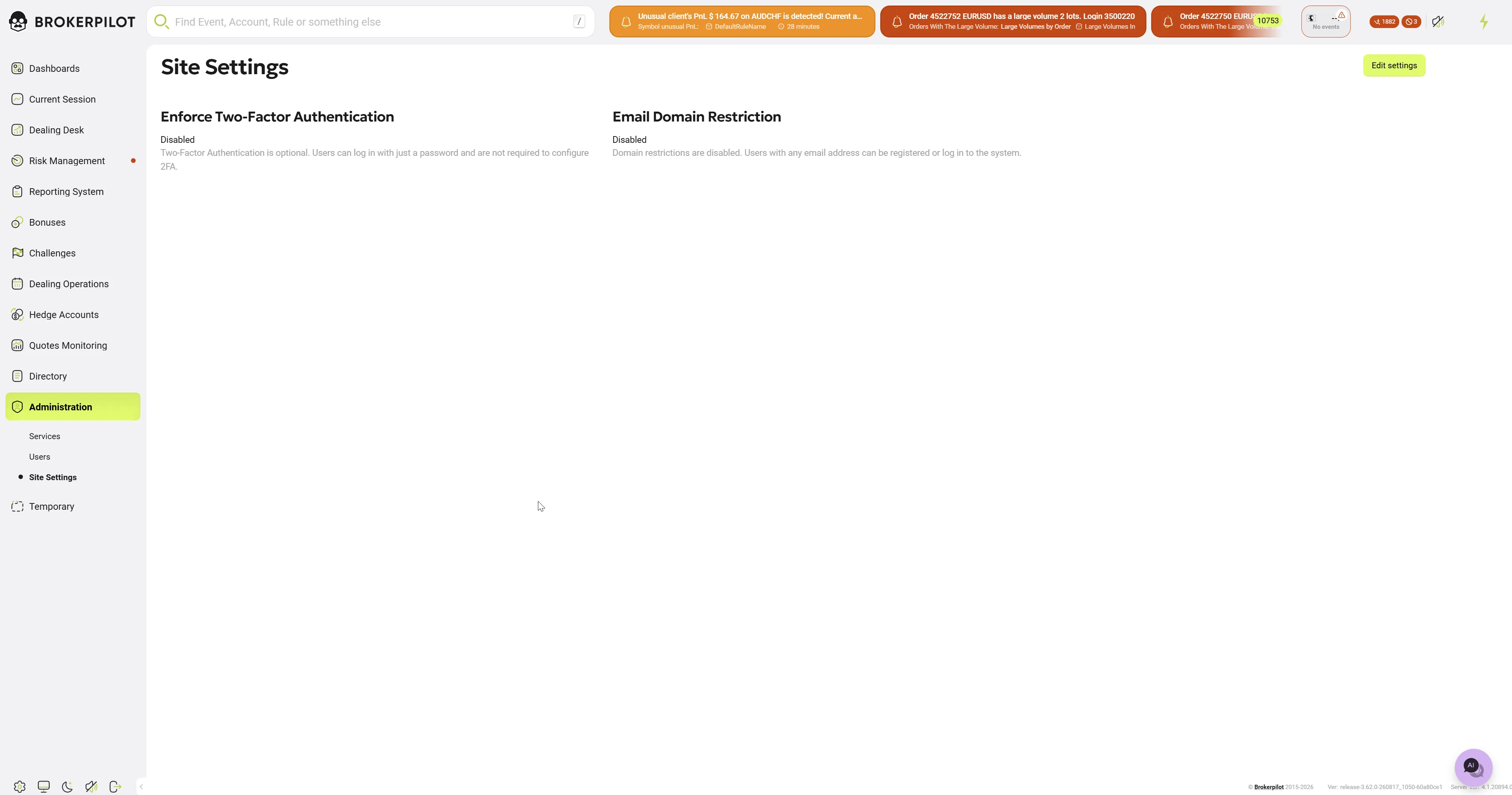
The main page displays the current status of your platform's core security configurations. Each setting will show whether it is currently Enabled or Disabled, along with a brief description of its behavior.
There are two primary configurations available:
- Enforce Two-Factor Authentication: Controls whether Two-Factor Authentication (2FA) is mandatory for all platform users.
- When Disabled: 2FA is optional. Users can log in using just a standard password without being required to configure a second authentication step.
- Email Domain Restriction: Controls who can register or log in based on their email address domain.
- When Disabled: Domain restrictions are inactive, meaning users with any valid email address domain can be registered or log in to the system.
Editing Site Settings
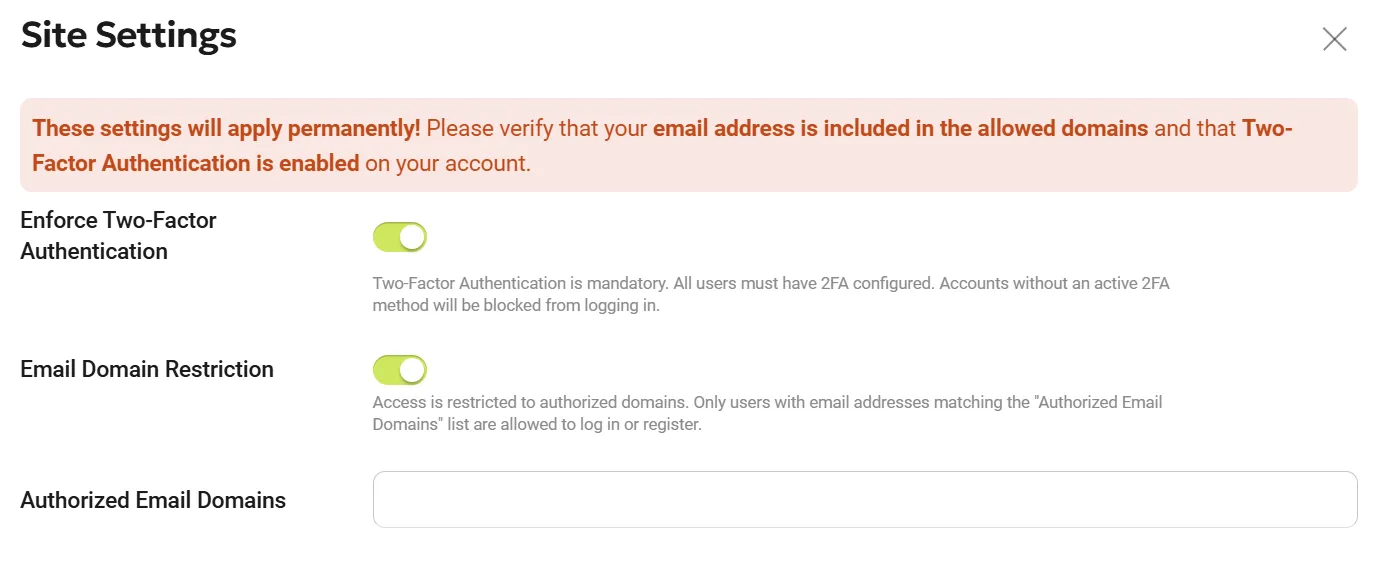
To modify these security policies, follow these steps:
- Navigate to Administration > Site Settings from the left-hand sidebar.
- Click the green Edit settings button located in the top right corner of the screen.
- A modal dialog will appear.
- Use the toggle switches to turn Enforce Two-Factor Authentication and Email Domain Restriction on or off.
- Click Save to apply your configurations, or click Cancel to discard your changes.
⚠️ IMPORTANT WARNING These settings will apply permanently! Before enabling either of these restrictions, you must verify that:
- Your own email address is included in the allowed domains.
- Two-Factor Authentication is already successfully enabled on your personal account.