Roles
1. Overview
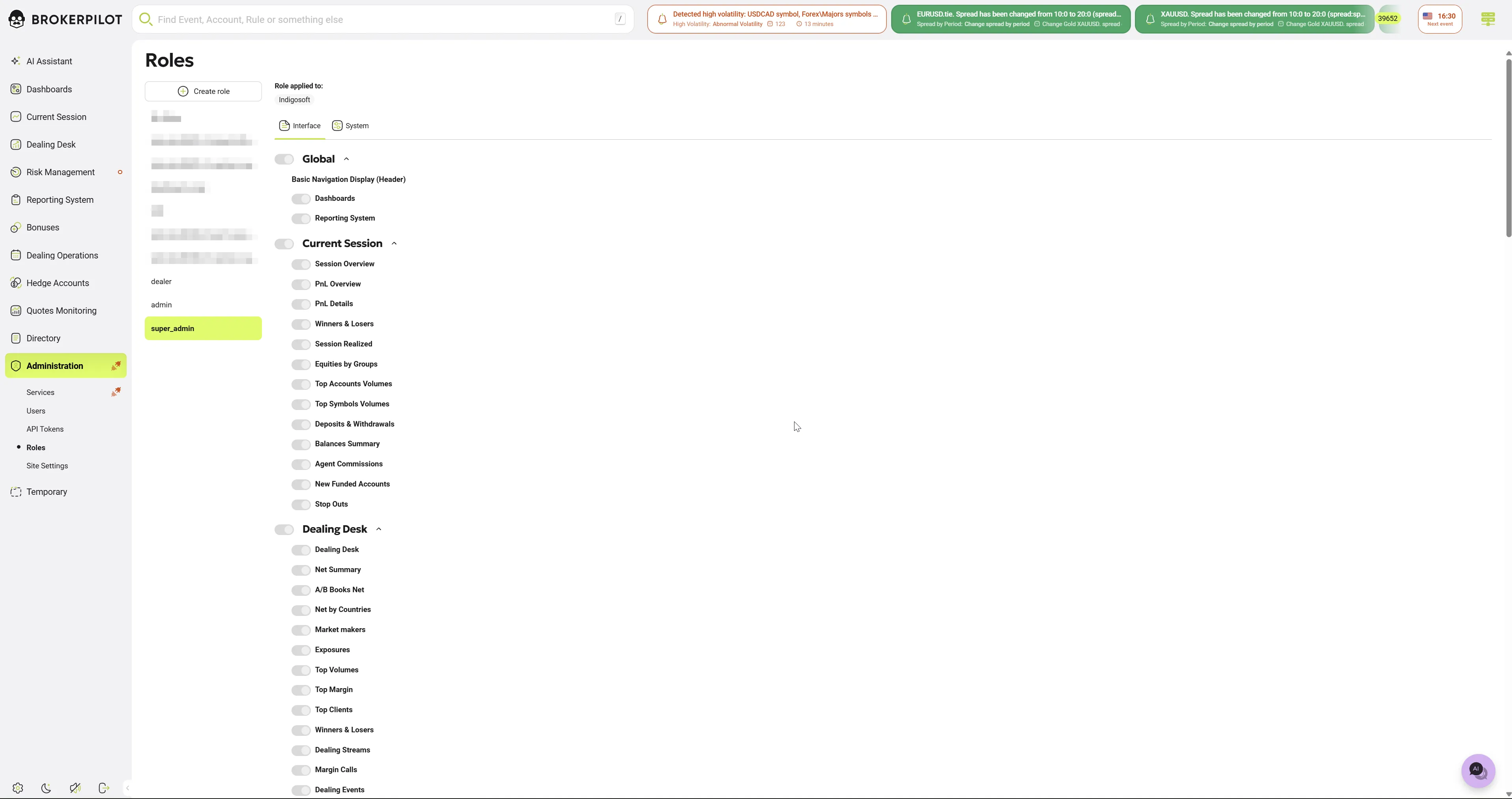
The Roles page allows administrators to manage access roles for users. A role is a named set of permissions (e.g., "Dealer"). By assigning roles to users, you can efficiently manage their permissions in bulk rather than configuring them individually.
On this page, administrators can:
- View all roles and the number of users assigned to each.
- Check which users are assigned to a specific role, or which users have no role at all.
- Create new roles and configure their permissions in a single step.
- Rename or delete roles (deletions can be undone for a brief period).
- Toggle specific permissions or entire permission groups on or off.
- Unassign a user from a specific role.
Note: A user's effective permissions are the combination of all enabled permissions from every role assigned to them. If a user has no assigned roles, their individual personal permissions are applied instead.
2. Page Layout
2.1 Roles List (Left Panel)
- Create role: A button to add a new role (visible only to users with role management permissions).
- No Roles: A permanent entry that lists all users who currently have no assigned roles. This selection does not have a permissions panel.
- Custom Roles: Roles are listed with the newest appearing first. Depending on your access, you may see options to:
- ✎ Rename: Available if the role is editable.
- 🗑 Delete: Available if the role can be removed.
- Loading State: A spinner appears while roles are loading. If the system cannot load the roles, a "Failed to load roles" message will display.
2.2 Role Assigned To (Users of the Selected Role)
- Users assigned to the selected role are displayed as chips (e.g.,
username ×). For the No Roles category, the chips represent users without any roles. - Service users are not displayed in this list.
- The panel remains hidden if no users are assigned to the selected role.
- Initially, up to 3 rows of chips are shown. Clicking Show more expands the list one row at a time.
- Unassigning Users: If you have permission to edit the role, clicking the × on a user's chip removes them from that role. The user will keep any other roles they have. (Note: You cannot remove users from the "No Roles" list or from a locked
super_adminrole.)
2.3 Permissions Panel
- This section displays the same permission groups and toggles found in the individual user permissions drawer.
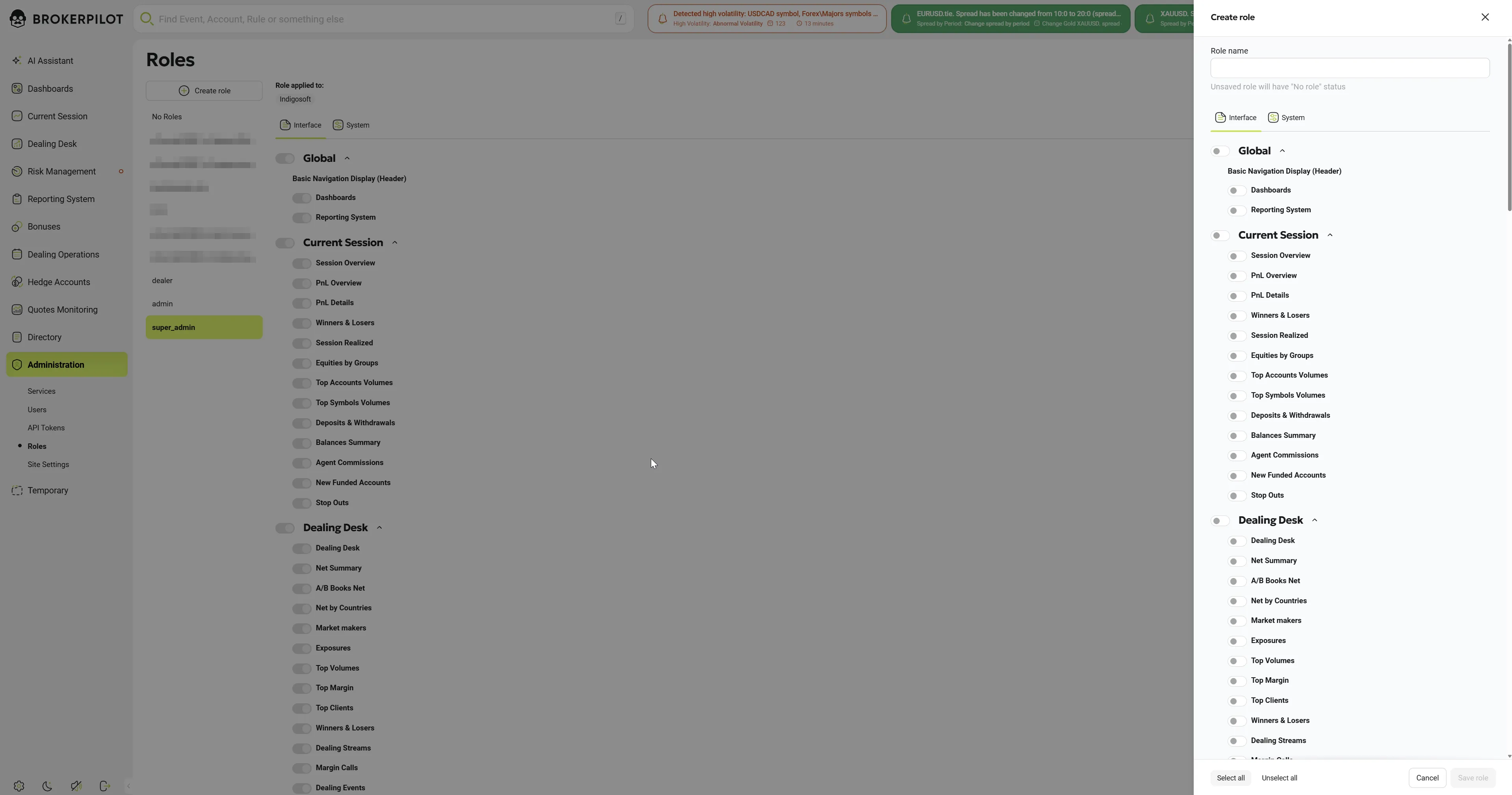
- Select all and Unselect all buttons allow for quick, bulk changes.
- Critical Permissions: Administrative roles retain a set of critical permissions permanently. These appear toggled on and greyed out, and clicking "Unselect all" will not disable them.
- Changes made to permissions are not saved automatically (see Section 3.4).
3. User Scenarios
3.1 Create a Role
- Click Create role. A side panel will open on the right.
- Enter a unique Role name. (An unsaved role will temporarily display a "No role" status).
- Toggle the necessary permissions on, or use the Select all / Unselect all buttons.
- Click Save role. The button remains inactive until a name is entered and while saving is in progress. (Pressing
Enterin the name field also saves the role).
Outcomes:
- The role is created, its permissions are saved, and the page automatically focuses on the new role.
- If the name is already in use, a warning ("A role with this name already exists") appears. The message clears once you change the name.
- For other errors, a "Failed to create role" message is shown.
- Closing the panel: The panel only closes when you click Save role, Cancel, or the × in the header. If you have unsaved changes, you will be asked to confirm before discarding them.
3.2 Rename a Role
- Click the ✎ icon next to the role. A dialog opens with the current name filled in.
- Update the name and click Save (or press
Enter). The Save button is disabled if the field is empty. - If the new name is already in use, the dialog will prompt you to choose another.
(Note: System roles like super_admin and admin cannot be renamed).
3.3 Delete a Role (with Undo)
- Click the 🗑 icon. A confirmation dialog will appear, noting how many users are currently assigned to the role and will be affected.
- Click Delete.
- The role is removed from the list. Affected users lose only this role; their other roles remain active.
- An Undo button appears for 9 seconds, along with a notification of the deletion.
- Clicking Undo restores the role with its original name and instantly reassigns it to all affected users exactly as it was.
- After a short period (about 2 minutes), the deleted role is permanently removed from the system and cannot be restored.
(Note: super_admin, admin, and dealer roles cannot be deleted).
3.4 Edit Role Permissions
- Select a role and adjust the toggles (individually, by group, or using Select all / Unselect all).
- A notification bar will appear at the bottom of the screen: "The permissions of N users have been changed." (N represents the number of users holding this role).
- Click Save changes to apply the updates to all assigned users, or click Undo changes to revert to the previously saved state.
- Unsaved Changes: If you attempt to switch to another role or leave the page before saving, a prompt will ask if you wish to discard your changes.
3.5 Remove a User from a Role
Click the × on a user's chip to unassign them. The user will keep all other roles. If you remove a user from their last remaining role, the system also clears their personal permissions, leaving them with no active permissions.
3.6 Live Updates
The Roles page updates in real-time. Any modifications (creating, renaming, changing permissions, deleting, or restoring roles) are immediately broadcast to all open sessions. Administrators viewing the page will see the changes instantly without needing to refresh.
4. Built-in Roles and Protection Rules
4.1 Naming Rules
- Every role name must be unique. Attempting to duplicate a name will result in an error message.
- Leading and trailing spaces are automatically removed by the interface. An empty name cannot be saved.
- When a role is permanently deleted, its name is immediately freed up and can be used for a new role.
4.2 How Effective Permissions are Calculated
- Users with one or more roles: Their effective permissions are a combination of every enabled permission across all their roles, with duplicate permissions ignored. Having an admin-level role does not bypass this rule; a role with no enabled permissions grants no access.
- Users with no roles: The system falls back to using the user's personal permission settings.