Brokerpilot AI Chat Guide
1. What is AI Chat
AI Chat is a built-in intelligent assistant on the Brokerpilot platform, designed for risk management specialists at Forex/CFD brokers.
Key Benefits
- Instant data access — instead of navigating through multiple platform sections, simply ask the chatbot: "What is the balance of account 12345?", and you will get an instant answer.
- Account analysis — the bot can perform a comprehensive analysis of a trading account, including trading style, risk assessment, and routing recommendations (A-Book / B-Book).
- Automated arbitrage scanner — the system automatically checks accounts for signs of arbitrage trading and sends notifications.
- Bilingual support — the bot understands and responds in both Russian and English. Just write in the language that is most convenient for you.
2. Architecture and Data Security
How the system works
The AI bot server is deployed in Docker inside the broker's infrastructure. It communicates with the Backend Master via WebSocket on internal addresses (192.168.x.x). Broker data never leaves the internal network — only the queries sent to the language model to formulate responses for the operator go outside.
Data Privacy & Personal Data Protection
1. No personal data is sent to AI models
Personal data — any information that can identify a natural person: full name, email, phone number, residential address, identity documents, or date of birth — is never transmitted to the AI. The system is designed so that the language model does not receive any personally identifiable information (PII).
2. Account number (login) is not personal data on its own
A number like 12345 means nothing without access to the broker's CRM or back-office. The AI model cannot use it to identify any individual. This is anonymized data — information that cannot be linked to a specific person without additional context that the model does not have.
3. Financial data (balance, trades) is not personal data when isolated from identity
A string like "balance: $192,805" without any link to a specific person is just a number. The model sees an anonymized dataset: account number + trading metrics. It does not know whose account it is and has no access to the CRM.
4. Data is requested only on operator initiative
The language model has no direct access to the broker's database. It cannot query data on its own. The process:
- The operator asks a question in the chat.
- The model determines which function is needed to answer the question.
- Our server retrieves data from Backend Master (within the internal network).
- The result is passed to the model for composing the response.
- The model returns a text answer to the operator.
No operator request — no data is transmitted.
5. Scanner Alerts — data processing
The scanner operates as follows:
- Retrieves data from Backend Master (within the internal network).
- The AI analyzes patterns (only trade volumes, instruments, and holding times) against a curated dataset of known fraudulent behavior.
- Stores alerts on the server (
pending-alerts.json). - Delivers them to the frontend via REST API.
In this process, the language model receives only numerical data: position amounts, instruments, and holding times.
6. MongoDB — local, within the broker's infrastructure
Chat history is stored in MongoDB at localhost:27017. Data never leaves the server. A configurable TTL is set for automatic data deletion.
7. OpenAI is used ONLY for documentation
The OpenAI API is called exclusively for generating embeddings of internal documentation files and the user's query text. No trading data or account information is sent to OpenAI.
3. Getting Started
Opening the chat

In the bottom right corner of the screen, there is a floating action button (FAB). Hover over it, and a menu will appear:
| Menu Item | Description |
|---|---|
| AI Chat | Opens the chat with the AI assistant |
| Scanner Alert | Opens the scanner notifications tab (displayed only when there are new alerts) |
| Support Line | Technical support line |
If a red badge is displayed on the button, it means you have unread notifications from Scanner Alerts.
First message
After opening the chat, you will see a welcome message briefly describing the bot's capabilities. Simply type your question into the input field at the bottom and press Enter or the send button.
4. Chat Interface
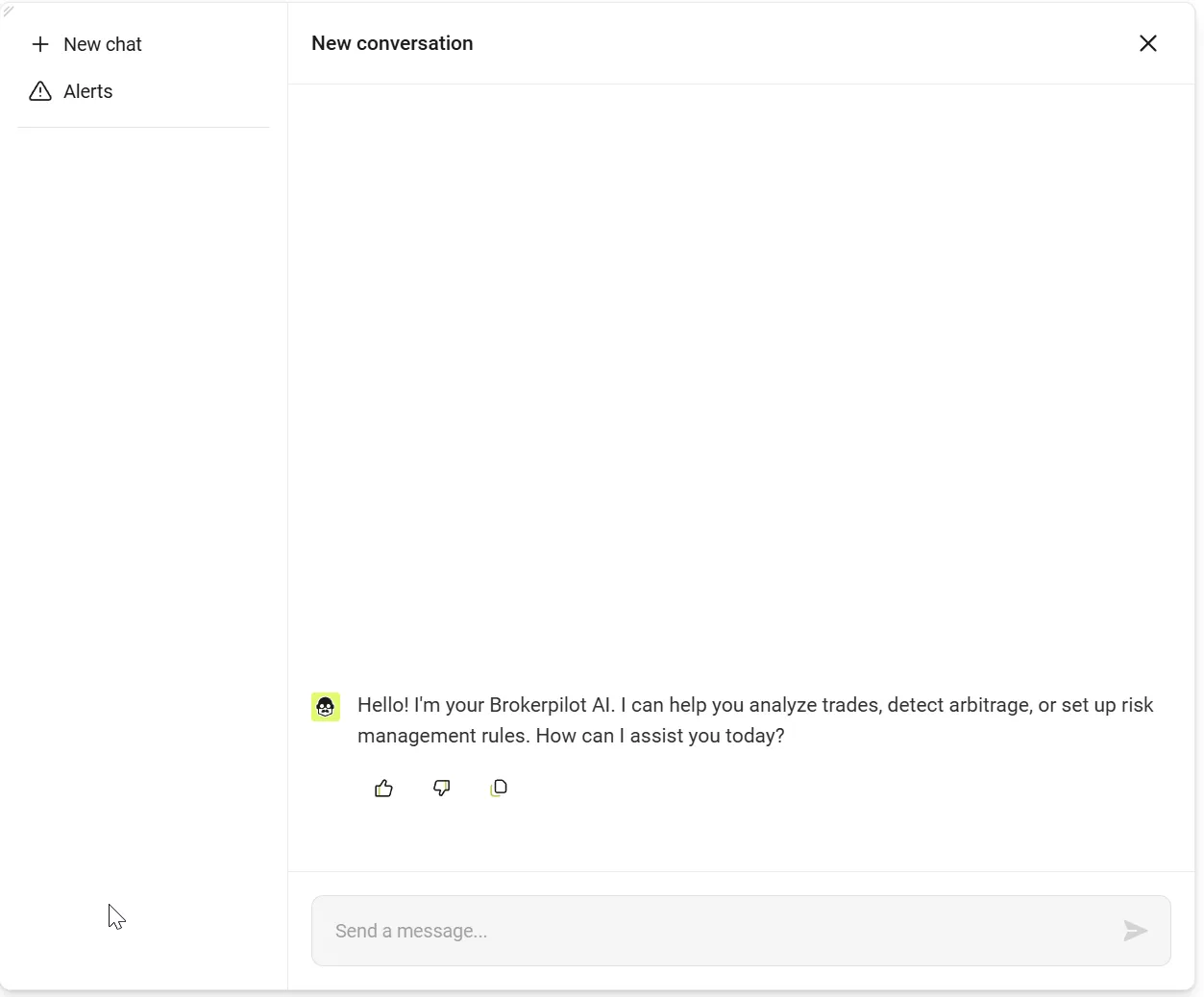
Sidebar (Left)
- "+ New Chat" — creates a new session for a fresh conversation.
- "Alerts" — switches to the Scanner Alerts notifications tab.
- Chat History — a list of all your previous sessions. Click on any to return to that dialogue.
Action buttons on messages
Three actions are available under each bot response:
| Button | Action |
|---|---|
| 👍 (Like) | Mark the answer as helpful |
| 👎 (Dislike) | Mark the answer as unhelpful |
| 📋 (Copy) | Copy the response text to the clipboard |
Your ratings help us improve the quality of the answers.
Resizing
You can resize the chat window: simply drag the corner marker in the top left corner of the window. The size is saved between your sessions.
Draggable Chat Icon
The chat bot icon is fully draggable so it never blocks your view. Click and hold the icon to drag it around your screen. When you let go, it will automatically stick to the closest edge of the window.
Hiding the Chat Icon
If you need the chat icon completely out of the way, click the Hide chat (x) button. The icon will collapse into a small tab on the edge of your screen. Click this tab at any time to bring the chat icon back.
Dark Theme
The chat fully supports Brokerpilot's dark theme. The theme switches automatically alongside the platform's main interface.
5. What AI Chat Can Do
5.1 Account Information
Find out any data about a trading account with a single question:
| Capability | Example Queries |
|---|---|
| Basic Data | "Show information for account 12345" |
| Balance & Equity | "What is the balance of account 12345?" |
| Current Profit | "What is the current P&L for account 12345?" |
| Profit History | "Show the profit of account 12345 for the last month" |
| Open Positions | "What positions are open on account 12345?" |
| Exposure | "Show exposure for account 12345" |
| Trade History | "Trades for account 12345 over the last week" |
| Changelog | "Show the log for account 12345" |
| Average Trade Time | "What is the average position holding time for 12345?" |
5.2 Comprehensive Account Analysis
Ask the bot to perform a full analysis of an account:
"How is account 12345 operating?"
The bot will run a comprehensive check and provide:
- Basic account data (balance, equity, leverage, group)
- Trading style analysis
- Risk assessment
- A-Book / B-Book routing recommendations
5.3 Triggers and Alerts
| Capability | Example Queries |
|---|---|
| Account Alerts | "What alerts were there for account 12345?" |
| Account Triggers | "Which triggers are monitoring account 12345?" |
| Trigger Statistics | "Trigger activation stats for 12345 over 7 days" |
| All Trigger Settings | "Show settings for all triggers" |
| Active Triggers | "Which triggers are currently active?" |
| Activation History | "Trigger activation history for 3 days" |
| Active Issues | "Are there any active alerts right now?" |
5.4 Market Overview
| Capability | Example Queries |
|---|---|
| Net Volume by Instruments | "Show net volume across all instruments" |
| All Open Positions | "Show all open positions" |
| Positions Summary | "How many open positions are there in total?" |
| P&L by Instruments | "Current session P&L by instrument, top 10" |
| Trading Session Summary | "Show the summary of the current trading session" |
| Leaders & Outsiders | "Show the top 5 by profit and loss" |
5.5 Routing and Infrastructure
| Capability | Example Queries |
|---|---|
| A-Book Settings | "Is this account in A-Book or B-Book?" |
| Node Information | "Show information about trading nodes" |
5.6 Platform Questions
The bot possesses an extensive knowledge base about the Brokerpilot platform and can answer questions regarding:
- The functionality of platform modules
- Trigger configuration
- Risk settings
- Working with groups and accounts
- Any other aspects of Brokerpilot
"How do I set up a margin call trigger?"
"What is the Mirror Trades module?"
"How does A-Book routing work?"
6. Scanner Alerts (Arbitrage Scanner)
What it is
Scanner Alerts is an automated system for detecting suspicious and arbitrage activity on trading accounts. The scanner runs in the background and sends notifications directly to the chat when problematic accounts are identified.
How it works
The scanner launches automatically and checks accounts in two stages:
Stage 1 — Quick Analysis (all checked accounts):
- Top 100 accounts by profit
- Top 50 most active traders
- New accounts (created in the last 7 days)
- Accounts from the Watchlist
Stage 2 — Deep Analysis (top suspicious accounts):
A detailed analysis of trade history to look for specific patterns.
What the scanner checks
Quick Checks
| Pattern | Description |
|---|---|
| High Profit | Daily profit exceeds 10% of the balance — may indicate atypical trading |
| High Leverage | Leverage ≥ 1:500 with actual usage >5x — increased risk |
| Demo Profit | Demo account with profit over $100K — possible preparation to transition to a real account |
| Zero Drawdown | Profit over $1K with zero drawdown — atypical trading pattern |
Deep Checks (by trade history)
| Pattern | Description |
|---|---|
| High Win Rate | Win rate ≥ 90% across more than 10 trades — statistically improbable trading |
| Hedging / Locking | Simultaneous Buy and Sell on the same instrument with an interval of <20 seconds — a sign of an arbitrage strategy |
| Short Profitable Trades | Average duration <2 hours, stable small profit — possible "scalp-arbitrage" |
| Take Profit Closings | ≥ 90% of trades are closed via TP — may indicate a system with known-in-advance prices |
| Single Instrument Concentration | ≥ 80% of trades on one symbol — narrow specialization, typical of arbitrage bots |
| Systematic Small Profit | Stable profit of $0.3–$3 per trade with high consistency — a typical "micro-arbitrage" pattern |
Risk Levels
| Level | Assessment | Action |
|---|---|---|
| 🟢 Normal | 0–4 | No cause for concern |
| 🟡 Suspicious | 5–7 | Account is automatically added to the Watchlist for monitoring |
| 🔴 Confirmed Arbitrage | 8–10 | Alert with a recommendation to move the account to A-Book |
How to view alerts
- If a red badge appears on the FAB button — there are new alerts.
- Hover over the button and select "Scanner Alert", or open the chat and click "Alerts" in the sidebar.
- Each alert contains:
- A list of detected accounts
- Category (suspicious / confirmed arbitrage)
- Detected patterns
- Risk assessment
- Action recommendations
- You can rate the alert 👍/👎 or 📋 copy its contents.
Watchlist
- Accounts with a risk level of 5–7 are automatically added to the Watchlist.
- The scanner periodically re-evaluates accounts on the Watchlist.
- If an account accumulates more risk upon re-evaluation, it is upgraded to the "confirmed arbitrage" level.
- If the suspicious activity is not confirmed, the account is removed from monitoring.
7. Usage Tips
✅ Recommendations
- Include the account number in your request — the bot will automatically fetch all necessary data.
- Write in any language — Russian or English. The bot will reply in the same language.
- Ask clarifying questions — the bot remembers the context of the conversation within a single session.
- Create new chats for new topics — this makes it easier to find specific dialogues in your history.
- Check "Alerts" regularly — to ensure you don't miss any suspicious activity.
❌ What the bot DOES NOT do
- Does not answer questions unrelated to Brokerpilot (weather, jokes, programming).
- Does not disclose information about its underlying model or internal architecture.
- Does not perform actions that modify data (read-only).
- Does not receive or transmit personal data, including any data that could possibly be used to identify a specific individual.
8. Frequently Asked Questions
How often is the data updated?
The bot receives data in real-time via the platform's API. When you ask a question, the bot accesses the most current data available.
What should I do when I receive an alert?
- Read the alert details — identify which pattern was detected and what the risk level is.
- For confirmed arbitrage (risk 8–10), it is recommended to move the account to A-Book.
- For suspicious accounts (risk 5–7) — they are already added to the Watchlist and will be re-checked automatically.
- If necessary, ask the bot for a detailed analysis: "Analyze account XXXXX".
How do I return to a previous conversation?
Open the left sidebar and click on the desired session from the history list.
Can I copy the bot's answer?
Yes, click the 📋 (Copy) button under any message. The text will be copied to your clipboard.
Is an account number a cause for concern regarding privacy?
An account number without access to the back-office is anonymized data. It is impossible to identify a person solely by it.