Brokerpilot AI Assistant: Broker Guide
What the AI Assistant is
The Brokerpilot AI Assistant answers questions about the platform and about your live data in plain language — no digging through admin sections or manual exports. It works as a documentation reference, a live platform data analyst, and a custom analytics engine.
Each section includes ready-to-use prompts - copy them and substitute your own logins, groups and dates.
All logins, names and emails in the examples are fictional.
How to Access the AI Assistant
You can open the AI Assistant from anywhere within the Brokerpilot platform using two methods:
-
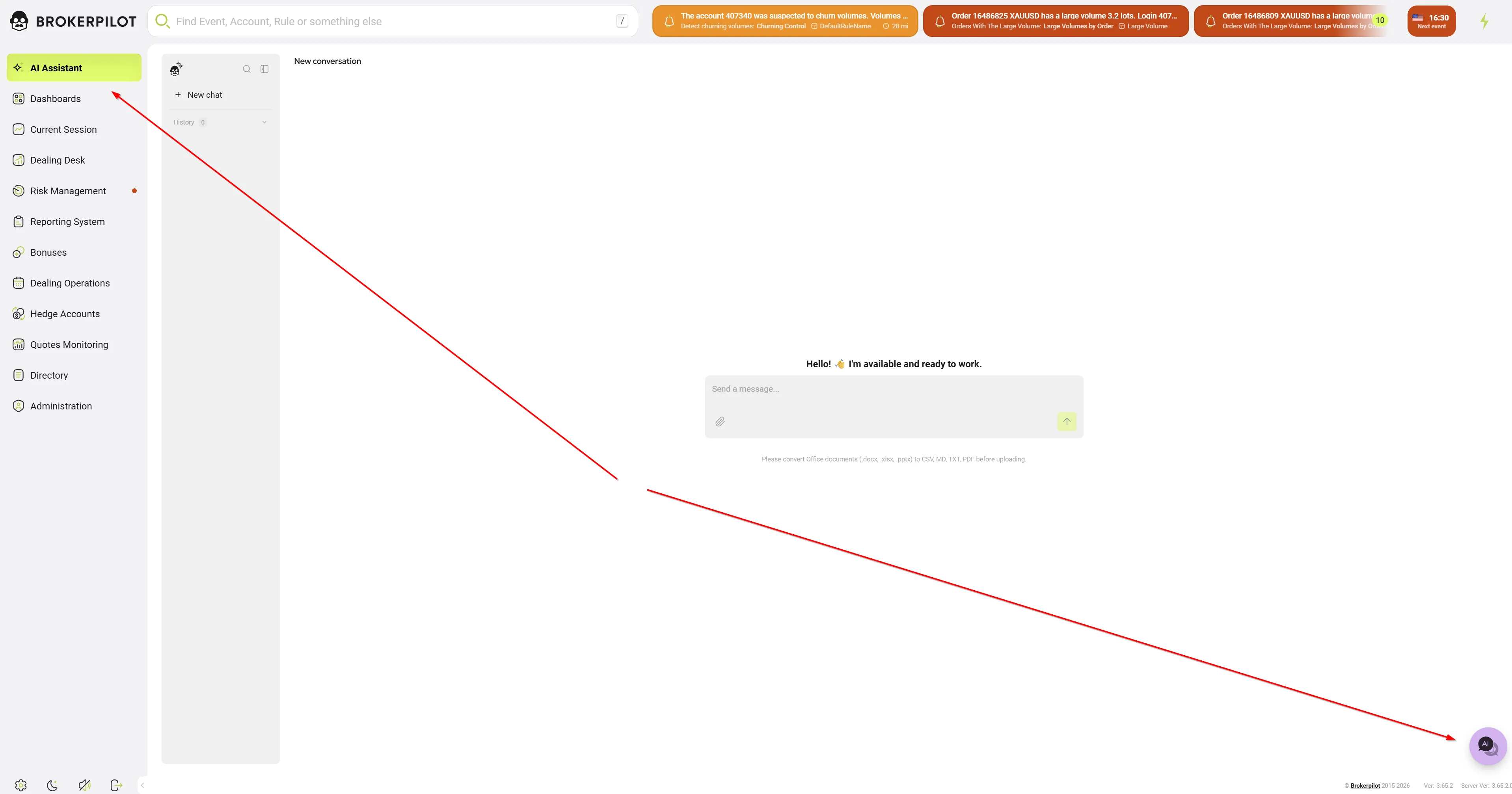
Full-Page View: Click on "AI Assistant" at the very top of the main left-hand navigation menu. This opens the dedicated workspace.
-
Floating Window: Click the purple "AI" chat bubble in the bottom right corner of your screen, then select "AI chat" from the pop-up menu (which also includes the Support line). This opens a convenient overlay window without leaving your current page.

Draggable Chat Icon
The chat bot icon is fully draggable so it never blocks your view. Click and hold the icon to drag it around your screen. When you let go, it will automatically stick to the closest edge of the window.
Hiding the Chat Icon
If you need the chat icon completely out of the way, click the Hide chat (x) button. The icon will collapse into a small tab on the edge of your screen. Click this tab at any time to bring the chat icon back.
Interface Overview:
- Left Panel: Use the "+ New chat" button to start a fresh conversation. Below it, you will find your "History" dropdown to access previous sessions.
- Message Box: Type your request in the central input field and hit the green up-arrow button to send.
- Attachments: Click the paperclip icon in the message box to upload files. (Note: Office documents like .docx, .xlsx, and .pptx must be converted to CSV, MD, TXT, or PDF before uploading, as stated under the input box).
Managing Conversations
Each conversation keeps its own isolated context. To get the best results, follow a simple rule: one case, one conversation.
- History & Search: All conversations are saved for 90 days. You can search your history by titles or message text, return to previous chats, and continue them.
- Renaming: Conversation titles are set automatically, but you can manually rename them for easier tracking.
- Streaming & Control: Answers appear in real-time as they are generated. If you notice the assistant is going in the wrong direction, you can stop the generation at any time.
Mode 1. Documentation questions
The assistant answers strictly from the official Brokerpilot documentation and cites the section each answer comes from. If the documentation has no answer, it says so — it never makes things up.
Working with Attachments
You can attach files to your question, and the assistant will analyse their contents.
- Supported formats: Images (PNG, JPEG, GIF, WEBP), PDFs, and text files (TXT, MD, CSV).
- Limits: Up to 5 attachments per message.
- Important: Office files (.docx, .xlsx, .pptx) are not supported. Please convert them to PDF before uploading.
What you can ask:
- how a feature works and how to configure it;
- where a setting is located in the admin panel;
- what a term means;
- why a request may have been rejected (deposit, withdrawal, verification, etc.).
Sample prompts
| Task | Prompt |
|---|---|
| Understand a feature | "How does automatic client routing between A-book and B-book work? Explain step by step." |
| Find a setting | "What can I use to change leverage?" |
| Working with reports | "How do I find linked accounts?" |
| Rejected request | "Why might a withdrawal request have been rejected? List the possible reasons according to the documentation." |
| Analyse a screenshot | [error screenshot] "What does this error mean and what needs to be done to fix it?" |
| Analyse a file | [PDF] "Compare this procedure with the Brokerpilot documentation: which steps are done differently on the platform?" |
Tip: if you need an answer with a reference to the section, add "state which documentation section this comes from".
Mode 2. Live platform data
The assistant pulls real, current platform data and answers questions about specific accounts, clients and the platform as a whole. Data is shown within the limits of your access rights.
Account search and account status
An account can be found by login, name, email or group. The assistant shows balance, equity, margin, leverage, open positions and pending orders.
| Task | Prompt |
|---|---|
| Find an account | "Find linked accounts for CID 546b839****......" |
| Account status | "Analyse account 100234." |
| Positions | "What open positions and pending orders are on account 100234 right now?" |
| Group accounts | "Show all accounts in group real-usd-std with a margin level below 50%." |
| Lists | "Show a list of all profitable accounts for today." |
| Comparison | "Compare accounts 100234 and 100236." |
Transaction history
History of trades, deposits, withdrawals and bonuses is available.
| Task | Prompt |
|---|---|
| Trades | "Show closed trades on account 100234 for the last 7 days, sorted by profit." |
| Financial operations | "What deposits and withdrawals were made on account 100234 from 1 to 20 October?" |
| Bonuses | "Were any bonuses credited to account 100234? Show dates and amounts." |
| Summary | "Give a brief summary of account 100234: deposits, withdrawals, trading result for the month." |
Investigations and anti-fraud
The assistant finds linked profiles (shared email, IP, CID, full name or document), shows staff comments and the account event history, as well as ready-made lists of suspicious and anomalous accounts.
| Task | Prompt |
|---|---|
| Linked profiles | "Find all profiles linked to account 100234 by IP, email or document." |
| Multi-accounting | "Are there other accounts with the same CID or full name as account 100234?" |
| Comments | "Show staff comments on account 100234." |
| Event history | "Show the event history for account 100234 for the last month: leverage, group and status changes." |
| Suspicious accounts | "Show the current list of suspicious accounts and briefly explain why each one is on it." |
| Full review | "Prepare an investigation summary for account 100234: linked profiles, event history, comments, large withdrawals." |
Platform overview
Available: trading server status, risk exposure by instrument and currency, trading conditions and swaps, and P&L for the current trading session split into A-book and B-book.
| Task | Prompt |
|---|---|
| Servers | "Are all trading servers running normally right now?" |
| Exposure | "Show current risk exposure by instrument, top 10 by volume." |
| Currency exposure | "What is our net position in USD and EUR right now?" |
| Trading conditions | "What are the trading conditions and swaps for XAUUSD in group real-usd-std?" |
| Session P&L | "What is the P&L for the current trading session? Split it into A-book and B-book." |
Exports and reports
Any result can be delivered as a file: ask "export to Excel" or "save this as a report", and a CSV, Excel or text report file will appear in the chat. You can download it again later from the conversation history.
| Task | Prompt |
|---|---|
| Excel | "Export to Excel all deposits and withdrawals for group real-usd-std for October." |
| CSV | "Save the list of suspicious accounts as CSV with columns: login, group, reason, balance." |
| Text report | "Save the investigation summary for account 100234 as a report." |
| Management report | "Create a report on current session P&L split by A-book / B-book, with the top 5 instruments by exposure." |
Tip: list the columns and period you need directly in the prompt, so the file won't need to be redone.
Mode 3. Custom Analytics (Ad-hoc Queries)
If you need to answer analytical questions that no ready-made tool covers (e.g., custom slices, groupings, or counts over a specific period), the assistant can write its own read-only database query to find the answer.
| Task | Prompt |
|---|---|
| Custom counts & analytics | "How many new accounts per country opened in Q3?" |
Security, Limitations and Topic Boundaries
The assistant is read-only and never changes anything in the system.
- No changes are made. If asked to "change leverage" or "add a tag", the assistant will decline and point you to the admin section where this is done.
- Only your data. Each employee sees only their own data scope. If a question is outside your permissions, the assistant will say so honestly. Nobody else can see your chats, attachments, or background queries.
- Incomplete data is flagged. If some servers did not respond, the assistant will clearly state that the picture is incomplete and will not present it as complete.
- Topic boundaries. The assistant only answers questions related to Brokerpilot. It will automatically decline requests to write or explain code, solve abstract maths, translate/write general texts, discuss general news, or analyze other products and companies.
How the assistant responds to change requests:
| Prompt | Assistant response |
|---|---|
| "Change leverage on account 100234 to 1:100" | Declines and points to the admin section where leverage is changed. |
| "Add a VIP tag to this client" | Declines and points to the section where tags are assigned. |
| "Show accounts of another branch" (no access) | Reports that the request is outside your permissions. |
Recommendation: verify figures before passing them to a client or regulator, and never include passwords or payment details in prompts.
How to write good prompts
The more specific the request, the more accurate the answer. A good prompt names the object, the period, the fields you need and the output format.
- Object: login, email, group or instrument - "account 100234", "group real-usd-std".
- Period: "for the last 7 days", "from 1 to 20 October", "current session".
- What exactly you need: "balance and equity", "only withdrawals above 1,000 USD".
- Format: "as a table", "briefly, 3-5 points", "export to Excel".
- Refine in the same conversation: "now only for EURUSD", "add an IP column".
| Weak prompt | Strong prompt |
|---|---|
| "What's up with the client?" | "Show balance, equity, open positions and withdrawals for the week on account 100234." |
| "Any suspicious ones?" | "Show today's list of suspicious accounts with the reason for flagging, and export to CSV." |
| "Tell me about swaps" | "What are the swaps for XAUUSD and EURUSD in group real-usd-std? Show as a table." |
| "Why was it rejected?" | [request screenshot] "Why might this withdrawal request have been rejected? Cite the documentation section." |