Technical Requirements
Below you will find the necessary permissions that should be granted in the MT Manager API console to establish a connection between our system and your trading platform.
This document also outlines the technical requirements for the hardware and software necessary to install our frontend and backend components.
Whitelist of IPs
When we receive the credentials for the connection, we will provide the list of our IPs that we will use to connect to your MT4/MT5 servers.
⚠️ If frontend/backend is installed in Brokerpilot's cloud, please add IPs provided to your whitelist.
MT 4/5 Connection and Permission Requirements
To integrate with MT 4/5, the following are the minimum requirements for our system to go live:
⚠️ We'll kindly ask you to provide two MT manager credentials for each trading server. One is required for the Brokerpilot services connection, another one is for our technical support team with read-only permissions. This second account is needed to speed up the processing of your requests by our second-line support team whenever data consistency checks are required. It will also ensure that there is zero possibility of any changes being made to your dealing environment from our side.
- Export your server settings to a
.jsonfile (see Picture No. 3). - The export must include:
CommonConfigTradeServerOrdersRangeDealsRange
⚠️ Please ensure you remove any sensitive network configurations or IP addresses from the
.jsonfile before sending it to us.
Example .json file settings

- Picture No.2 – Export Settings

- Picture No.3 – Context Menu for Export

Picture References
- Picture No.4 – MT5 Permissions for Brokerpilot services connection. Required checkboxes are highlighted in red frames.

- Picture No.4 – MT5 Permissions for our tech support team with read-only permissions. Required checkboxes are highlighted in red frames.

MT4 Connection Requirements
For MT4:
-
Checking "Connections" is optional.
-
You will have access to groups of accounts that you specify in the Manager interface.
-
Picture No.5 – MT4 Permissions

Additional Permissions
If you would like to utilize triggers that allow direct control of leverage and spreads inside the MT platforms, Admin permissions are required along with a few additional checkboxes.
- Picture No.5 – Additional Permissions
Required checkboxes are highlighted in red frames.

cTrader Connection and Permission Requirements
For cTrader trading platform connection we need you to share with us the .exe file provided to you by Spotware support team (for example cbroker-setup.exe)
The following permissions are required to be provided for our team:

Each manager must have an email address attached in cTrader. Please use [support@indigosoft.net]
The following server info is also required for the ManagerApiSettings connection, please request it from the Spotware support team:
| Parameter | Value |
|---|---|
| Host | example demo.p.ctrader.com |
| Port | example 5011 |
| Login | example 11111 |
| Password | example ******** |
| EnvironmentName | example demo |
| PlantId | example broker_name |
Installation Information
Your installation option is self-hosting. You are required to provide us with hardware and software specified below.
Access for Preparation, Deployment, and Support
Before installation, provide the Brokerpilot team with server addresses, the agreed connection method, and the required accounts and permissions. Any option acceptable to your security team can be used, including VPN or access restricted to Brokerpilot IP addresses.
- Windows backend: provide RDP access to an account with local administrator rights. Brokerpilot installs and configures the required software, including WinRM over HTTPS with a self-signed certificate for automated deployment and updates.
- Linux frontend, self-hosted database, and markout instances: provide SSH access to an account with
sudorights for software installation, configuration, and support. Agree with Brokerpilot on an acceptable method for generating or exchanging SSH keys and installing the public keys on the servers. - Managed PostgreSQL: provide the database endpoint and credentials with the permissions listed below; host-level SSH access applies only to a self-hosted Linux database.
Permanent access is preferred so Brokerpilot can deploy updates and fix issues directly in your environment. If your policy requires access on request, agree on the process for enabling it before installation. Share credentials and key material through an agreed secure channel.
Server Configuration Requirements
Backend: Windows Server
The backend requires at least 8 CPU cores and 32 GB RAM. Larger deployments retain the higher RAM minimums listed below. Final sizing depends on the number of connected trading servers and their load.
| Connected trading servers | Minimum CPU | Minimum RAM | Minimum storage | Recommended storage |
|---|---|---|---|---|
| 1 | 8 cores | 32 GB | 100 GB | 100 GB |
| 2 | 16 cores | 48 GB | 100 GB | 150 GB |
| 5+ | 32+ cores | 64 GB | 140 GB | 150 GB |
Recommended CPU and RAM capacity above these minimums is agreed with Brokerpilot based on the expected load.
Frontend: Linux Server (LTS)
The frontend runs multiple applications in Docker Compose, with Nginx acting as a reverse proxy.
| Requirement | Minimum | Recommended |
|---|---|---|
| CPU | 2 cores | Based on expected load |
| RAM | 8 GB | Based on expected load |
| Storage | 20 GB | 40 GB |
The server must support adding 4 CPU cores, 8–16 GB RAM, and additional storage.
🗃️ Database: RDS or Linux Ubuntu LTS + PostgreSQL
1 Server
| Requirement | Minimum | Recommended |
|---|---|---|
| CPU | 2 Cores, 4 Threads | 3 Cores, 6 Threads |
| RAM | 4 GB | 8 GB |
| Storage | 200 GB | 200 GB |
2 Servers
| Requirement | Minimum | Recommended |
|---|---|---|
| CPU | 2 Cores, 4 Threads | 3 Cores, 6 Threads |
| RAM | 4 GB | 8 GB |
| Storage | 400 GB | 600 GB |
5+ Servers
| Requirement | Minimum | Recommended |
|---|---|---|
| CPU | 2 Cores, 4 Threads | 3 Cores, 6 Threads |
| RAM | 4 GB | 8 GB |
| Storage | 1 TB | 1 TB |
Required PostgreSQL permissions: read, write, delete, create tables, modify tables, drop tables, create databases, drop databases, create schemas, and drop schemas.
Markouts: Linux Instances
Provide one Linux instance for Kafka and ClickHouse, or two separate instances for deployments with heavy trading activity.
| Component | Required disk capacity | Placement |
|---|---|---|
| Kafka | 50 GB | Shared instance or dedicated Linux instance |
| ClickHouse | 200 GB | Shared instance or dedicated Linux instance |
For a shared instance, allocate capacity for both components (250 GB total), plus space for the operating system and other software. For separate instances, add operating system and software space to each component's disk allocation. CPU, RAM, and the Linux distribution/version must be agreed with Brokerpilot based on the expected trading load and data retention before provisioning.
SSH access with sudo is required on each markout instance for installation and configuration.
Server Connection Diagram
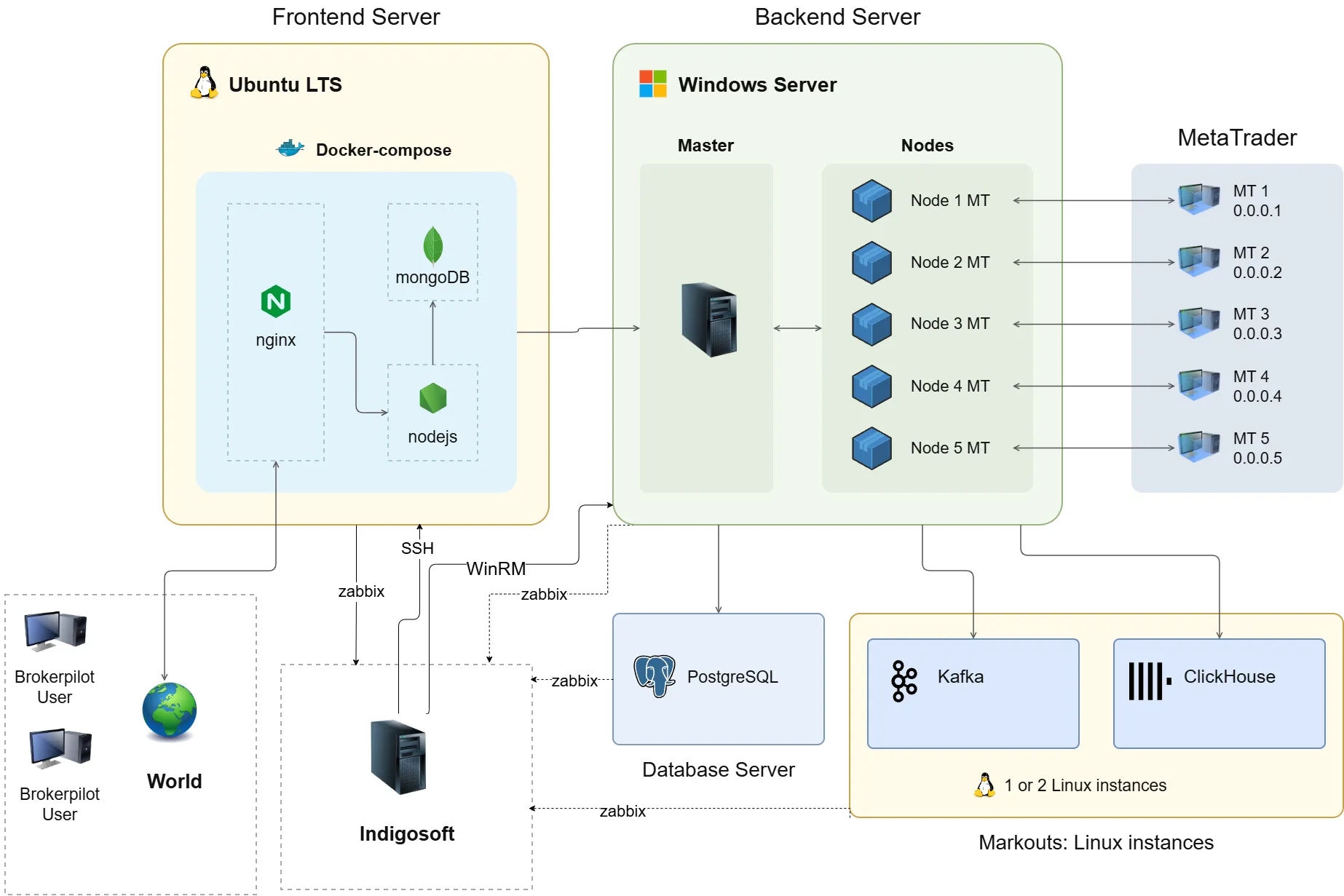
Brokerpilot Port & Connection Requirements
Network Connectivity and Access
Provide network connectivity between the frontend, backend, PostgreSQL, Kafka, and ClickHouse servers so Brokerpilot can install and configure the required services. Provide SSH access with sudo to all Linux instances and RDP access to the Windows backend. Brokerpilot installs and configures all required software.
Allow external access for Brokerpilot through the agreed connection method. Brokerpilot provides its IP addresses separately for your ACLs.
| Port | Connection / purpose |
|---|---|
| 22 | Brokerpilot → Linux instances: SSH for preparation, installation, and support |
| 3389 | Brokerpilot → Windows backend: RDP for preparation and support |
| 5986 | Brokerpilot → Windows backend: WinRM HTTPS for deployment and updates; configured by Brokerpilot during preparation |
| 10054 / 10055 | Zabbix: monitoring servers → agent on 10054, or active agent → Brokerpilot monitoring servers on 10055 |
| 80 / 443 | Users or reverse proxy → frontend Nginx: HTTP/HTTPS |
Internal service connections, including frontend containers → backend on 14500 and connections to PostgreSQL, Kafka, and ClickHouse, use the connectivity between servers. These services do not require public access.
🌐 Connection Options
Option 1: Brokerpilot Hosts DNS
- A DNS record in the format of
brokername.brokerpilot.netis created by the Brokerpilot team. - This DNS points to the Brokerpilot server.
- Brokerpilot sets up and configures Nginx for the frontend server.
- ⚠️ If ports 80 and 443 are closed to the internet, obtaining an SSL certificate for
brokername.brokerpilot.netmay not be possible.
Option 2: Client Hosts DNS
- The client creates the DNS record on their own DNS server.
- The client sets up the SSL connection on their own web server.
- The Brokerpilot team provides the location path and proxy_pass configuration.
Option 3: SSH Tunnel (SSL-Friendly)
- A DNS record in the format
brokername.brokerpilot.netis created by the Brokerpilot team. - The DNS points to the Brokerpilot server.
- All frontend traffic is tunneled through SSH to the frontend server.
- ✅ No issues with SSL certificate issuance in this configuration.