Dividends Adjustment
This section allows brokers to process dividend payments for traders holding open CFD positions. Brokers can apply dividends either to a specific trade server or, if operating multiple servers, to all orders across multiple trade servers. Traders can also be notified about dividend payments through push notifications in instant messaging apps. The applied dividends values are calculated at the scheduled time for the operations job, not at the moment of the job creation.
Navigate to Dealing Operations in the left-side menu.
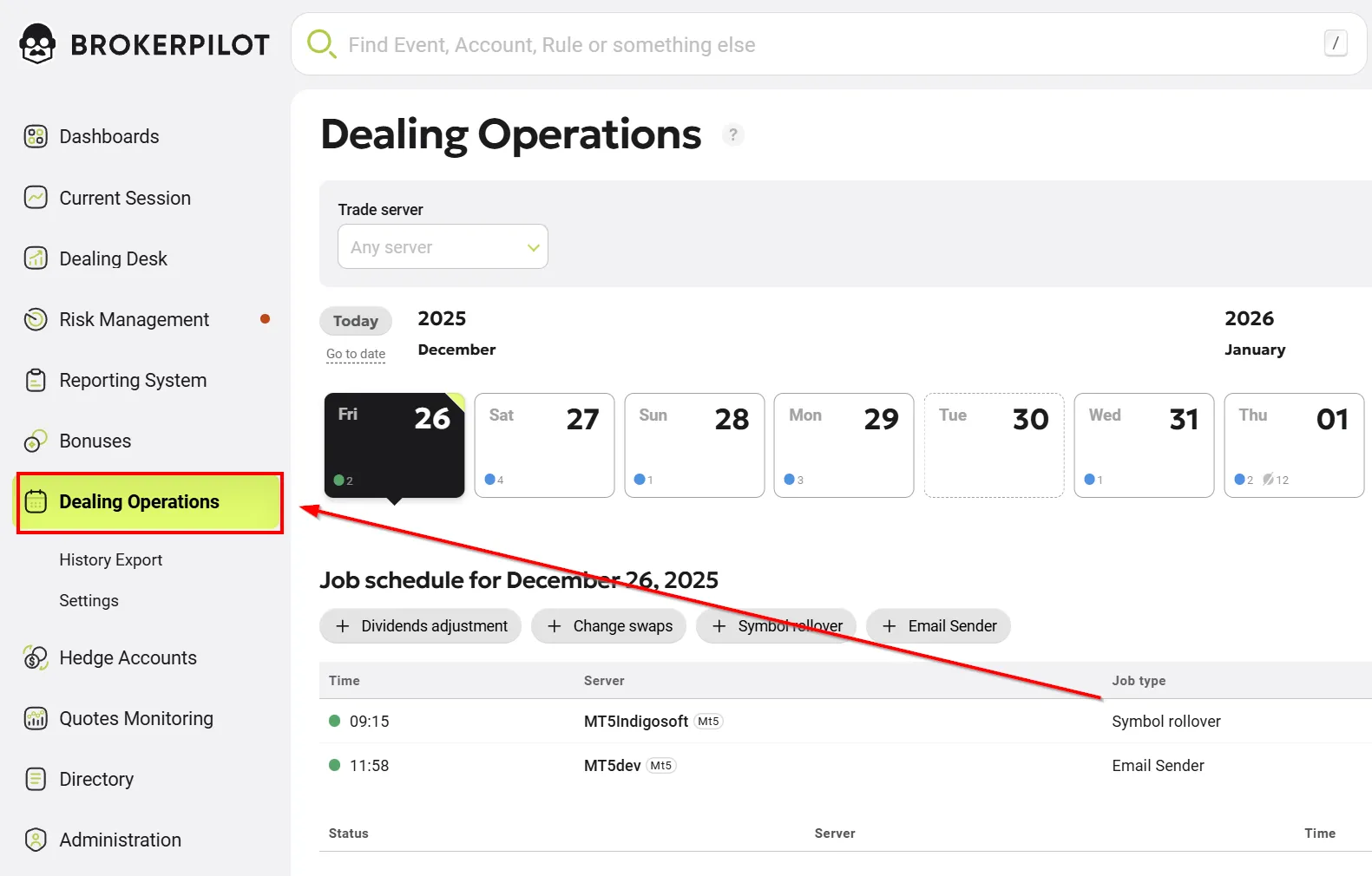
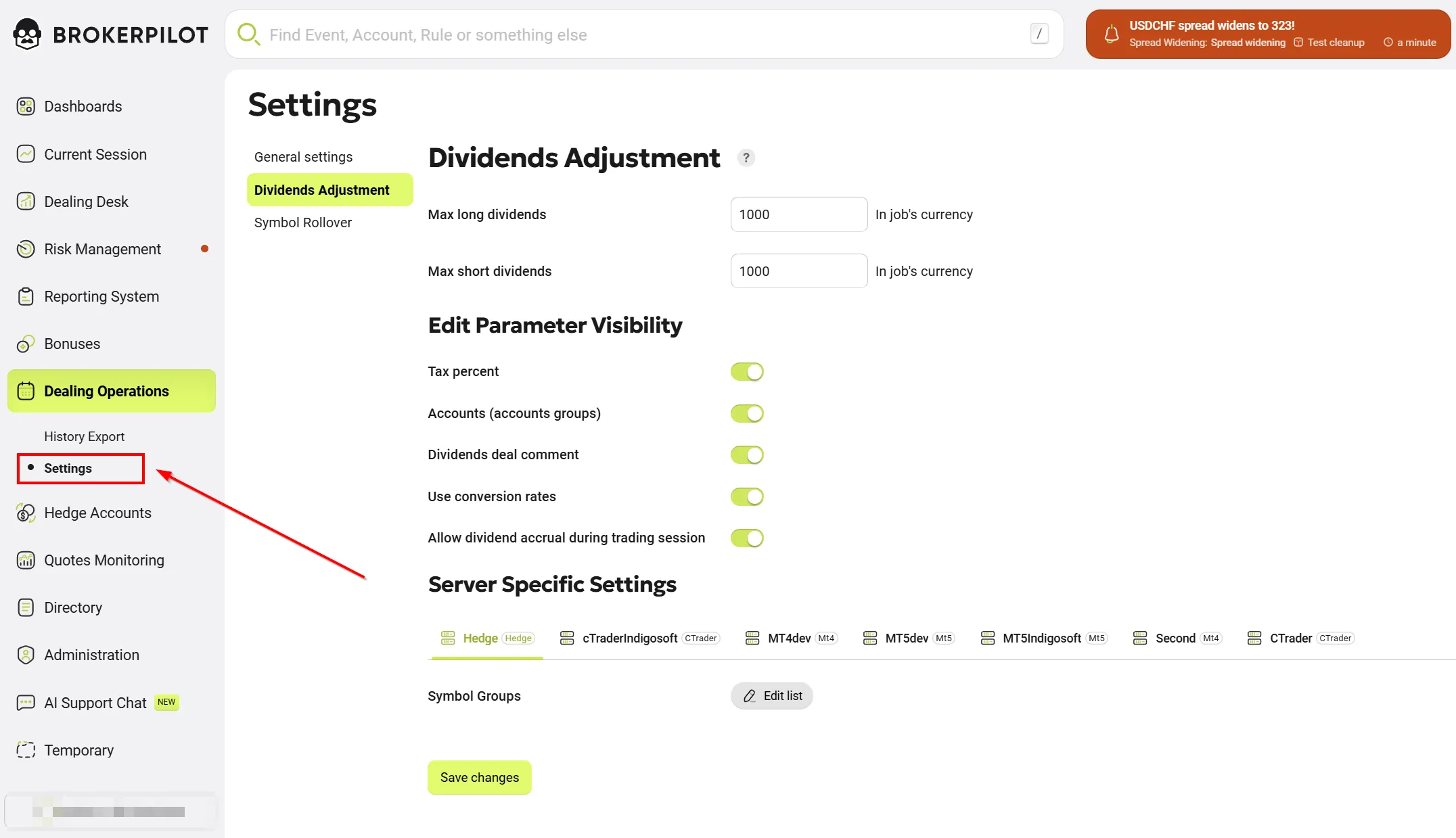
⚠️ To choose which fields are available for configuration, go to Dealing Operations → Settings and enable the desired fields along with their threshold values.
⚠️ Before proceeding make sure you selected the desired symbol groups to be applicable for the operation in the Dealing Operations → Settings → Symbol Groups section
Dividends Adjustment for a Single Symbol
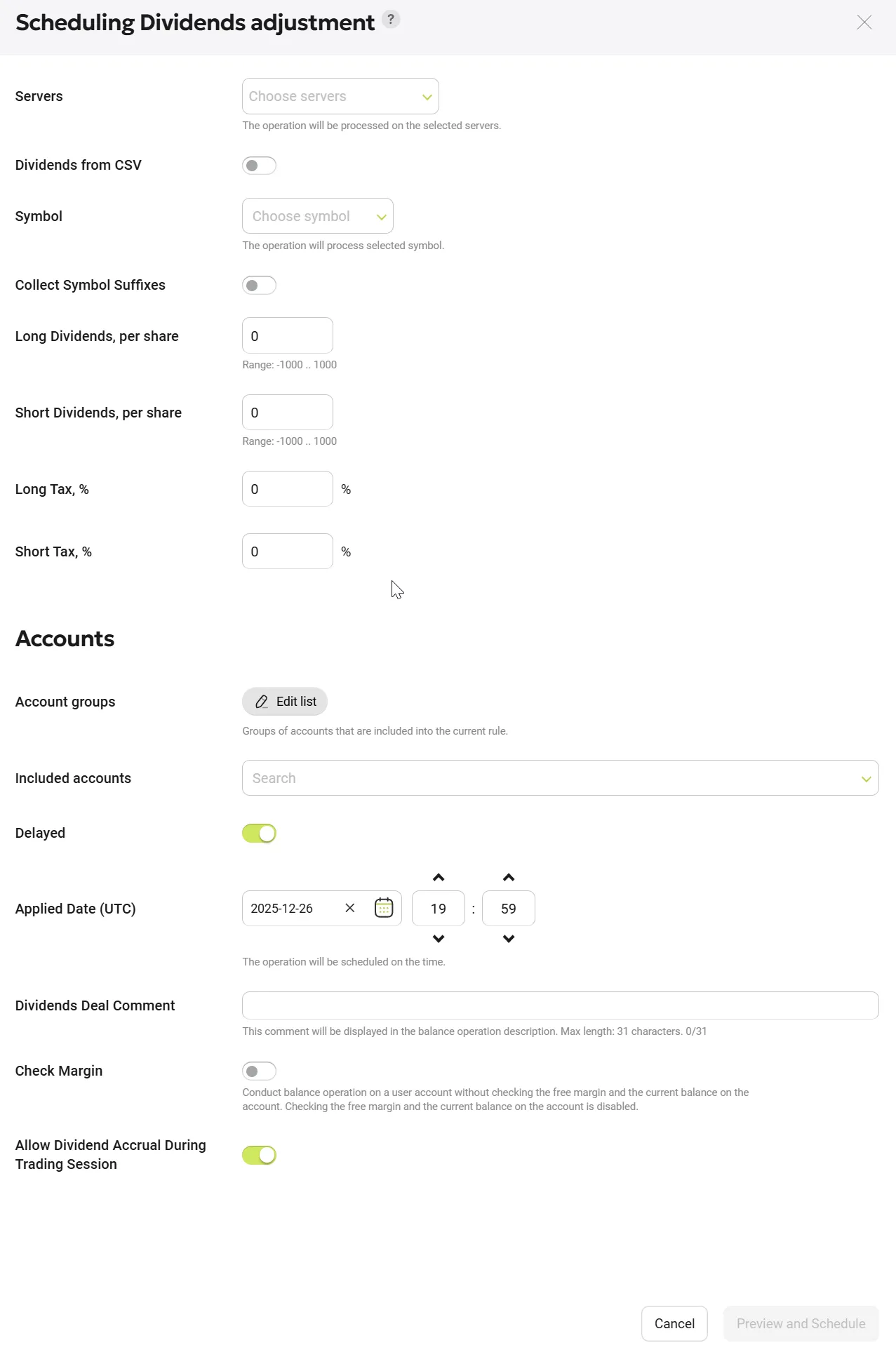
- Select the date and click Dividends Adjustment.
- Fill in the required data in the window that appears. Scroll down to view all available parameters.
- The description of all parameters is provided in the table below.
Parameter Descriptions
| Parameter | Description |
|---|---|
| Server | Select the server where the dividend operation should be executed. |
| Dividends from CSV | Turn this switch ON if you are uploading a CSV file. See the CSV upload process below for details. |
| Symbol | Choose the symbol. |
| Collect Symbol Suffixes | Turn ON to group symbols with suffixes (e.g., EURUSDc, EURUSDd, EURUSDcents) under the main symbol (EURUSD). Turn OFF to display them separately. |
| Long Dividends | Can be positive or negative: Positive values mean dividends are accrued, negative values mean dividends are deducted, and 0 means no accrual. |
| Short Dividends | Works the same way as Long Dividends, but applies to short positions. |
| Long Tax % | The tax percentage applied to the accrued dividends. If dividends are 0, tax will also be 0. |
| Short Tax % | The tax percentage applied to the accrued dividends for short positions. |
| Delayed | Turn ON to schedule the dividend operation for a future date/time. If OFF, the operation will be executed immediately. |
| Applied Date | Select the time and date for the operation and enter any relevant comments. ⚠️ Dividends can only be accrued when the trading session for the instrument is closed. |
| Dividends Deal Comment | By default, the system fills this field as "Div.Adjustment for #SYMBOL", e.g., Div.Adjustment for AUDUSD. You can customize it using the format "#SYMBOL_dividend position #POSITION_ID". |
| Use Conversion Rates | Turn ON if you need to apply a custom conversion rate instead of the actual market rate. Select currencies and enter the desired rate. |
| Check Margin | If ON, the system checks if the dividend accrual will result in a stop-out. If OFF, the operation proceeds without verification. |
| Allow Dividend Accrual During Trading Session | When enabled, dividends are accrued and applied to open positions during the active trading session. When disabled, dividend accrual is postponed and processed outside of trading hours, even if positions remain open. This setting allows brokers to control whether dividend adjustments affect equity and margin calculations in real time or only after the trading session ends. |
⚠️ If any errors or incorrect data are present, the "Preview and Schedule" button will be inactive.
Final Steps:
- Review all entered data carefully.
- Click "Preview and Schedule" to see a summary with preliminary calculations.
- If everything is correct, click "Schedule Job" to finalize the process.
- The dividend task will now appear in the calendar, where you can edit or cancel it at any time.
Uploading Dividends via CSV File
- Navigate to Dealing Operations > Dividends Adjustment in the left-side menu.
- Choose one or multiple servers.
- Turn ON the "Dividends from CSV" switch.
- Click "Show the format details" to see the CSV template.
- Ensure the trading session for the instrument is closed before proceeding.
- Prepare your CSV file according to the below provided template.
⚠️ Note: If you re-upload tasks from the same file (for example, after making changes and wanting to update the scheduler), duplicate tasks — identified by matching time and instrument — will be canceled and marked as "Canceled" in the system.
🧾 Column Definitions
| Column | Type | Example |
|---|---|---|
| Symbol | string | AAPL |
| Collect Symbol Suffixes | number (0 or 1) | 1 |
| Long Dividends | number | 1.85 |
| Short Dividends | number | -1.85 |
| Delayed | number (1 only) | 1 |
| Applied Date (UTC) | DD.MM.YYYY HH:mm | 31.01.2025 23:10 |
| Check Margin | number (0 or 1) | 0 |
| Comment | 31 characters maximum | Dividend Charge |
📂 Example File: Example.csv
Symbol;Collect Symbol Suffixes;Long Dividends;Short Dividends;Delayed;Applied Date;Check Margin
AAPL.US;1;1.85;-1.85;1;31.01.2025 23:10:00;0
EURUSD;1;15.64;-10;0;31.01.2025;0;Comment
- Upload the file.
Required CSV Parameters
| Parameter | Description |
|---|---|
| Symbol | Symbol name. |
| Collect Symbol Suffixes | ON - Upload all suffix variants. OFF - Group all symbol suffixes. |
| Long Dividends | Can be positive or negative: Positive values accrue dividends, negative values deduct dividends, and 0 means no accrual. |
| Short Dividends | Works the same way as Long Dividends, but applies to short positions. |
| Delayed | Default = ON (delayed operation). |
| Applied Date | Set the non-trading time (date/time format). Future dates will appear as scheduled tasks in the calendar. |
| Check Margin | ON - The system checks for stop-outs before processing. OFF - The accrual proceeds without verification. |
| Comment | Dividends applied to positions are reflected with standardized balance comments so they are easy to recognize in account history and reports. Maximum length - 31 characters. |
Uploading the File:
- Click "Choose File" to upload your CSV.
- The system will validate the file and display the results in a preview window.
- Status indicators:
- ✅ Green dot: No errors detected.
- ❌ Red dot: Errors found. Hover over the dot to see the error details.
- The file will only be uploaded if it contains no errors.
Permissions
Required Permissions for Dividend Adjustments
| MT4 | MT5 |
|---|---|
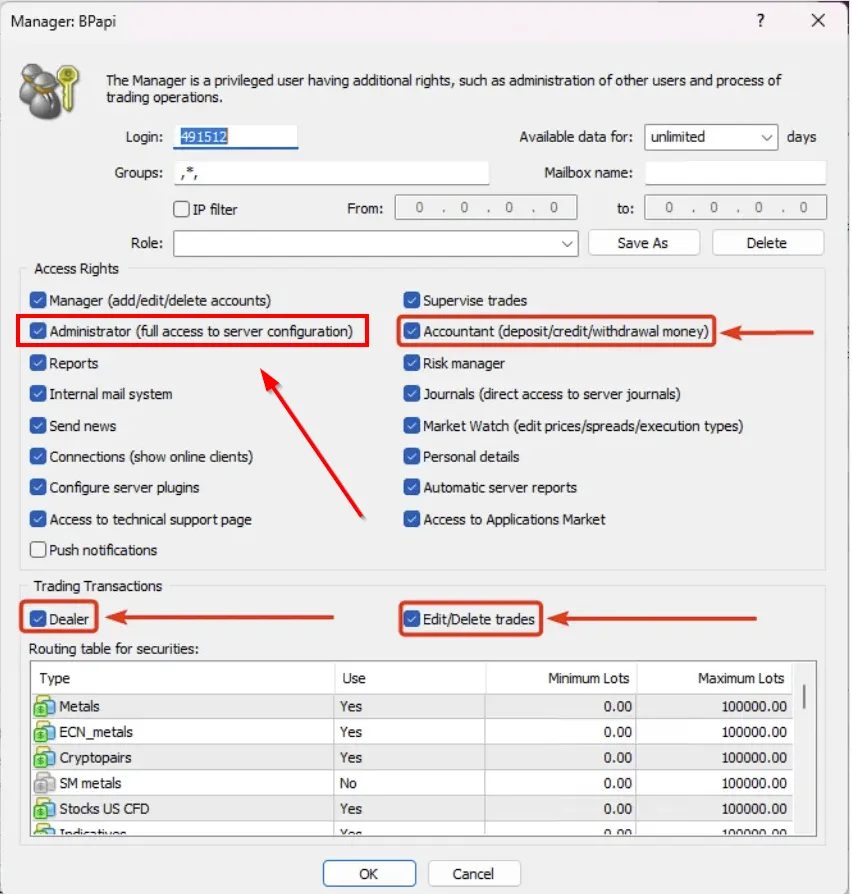 Access Rights: Accountant (deposit/credit/withdraw money) Access Rights: Accountant (deposit/credit/withdraw money) | 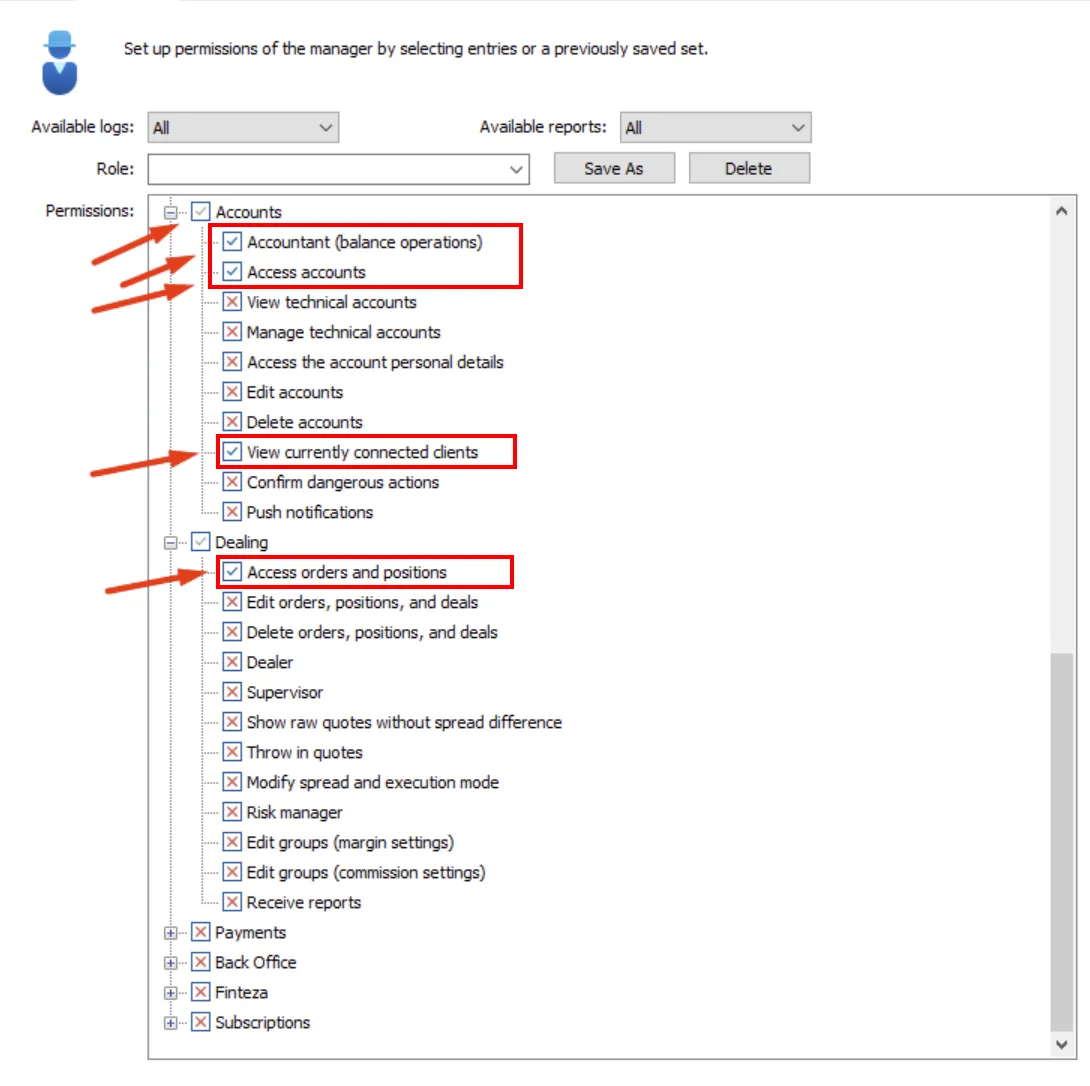 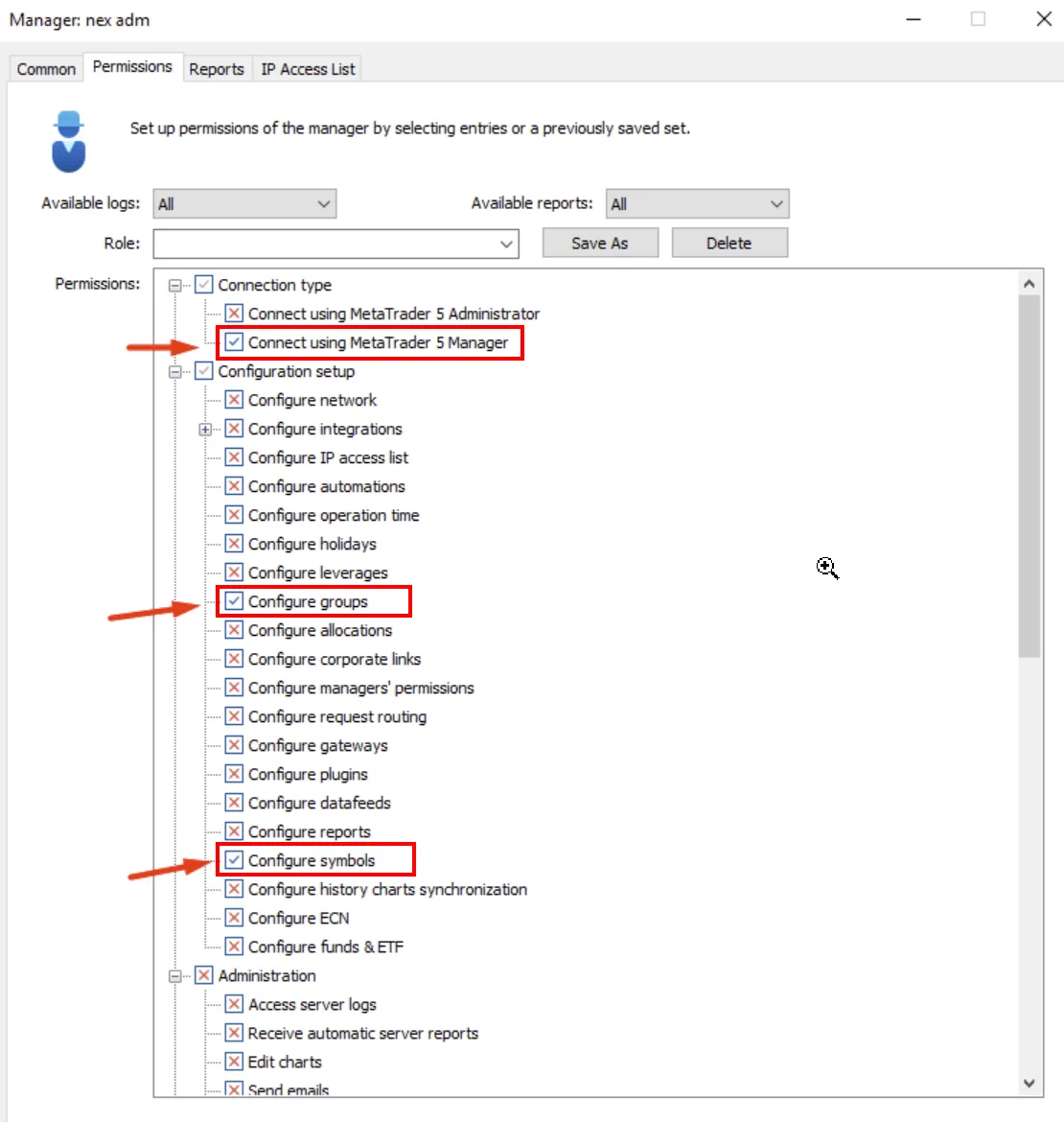 Access Rights: Accountant (balance operations) Access Rights: Accountant (balance operations) |
| Operations: Trading Transactions → Dealer, Trading Transactions → Edit/Delete Trades | Operations: Dealing → Dealer |